
Libraries, introduced in Xojo 2025r3, make it easy to reuse your classes and interface items such as windows, webpages, and mobile screens across projects. As compiled code, Libraries ensure your projects always use a specific version of your functionality while allowing you to share features with other Xojo users without exposing your intellectual property. Think of them like plugins written in Xojo instead of C++, with the flexibility to use them in a single project folder or in the Plugins folder for access across all projects. The Xojo documentation provides guidance on creating your own Libraries.
When you create a Library in Xojo, it’s tailored to the project type you’re working in, whether that is Desktop, Web, Mobile or Console, so everything stays organized and easy to manage. The Library format was designed to support all project types simultaneously; unfortunately, the Xojo IDE was not. The good news is that there are still ways to take advantage of the flexible underlying format. Since Libraries are simply .zip files, you can change the extension to .zip and decompress them to explore their contents. Inside, you’ll find a folder named for the project type you originally created it from, making it easy to understand the structure. Here are two ways to create Libraries that support multiple project types.
Merging Libraries Manually
To manually create a multi-project-type Library, start by building a separate Library for each project type your functionality supports, then change each one’s extension to .zip and decompress it. Choose one decompressed Library to serve as the final version, and copy the project-type folders (Desktop, Web, iOS, Android or Console) from the others into it. When everything is combined, recompress the folder back into a .zip file and change the extension to .xojo_library. You now have a single Library that works across all the project types you included.
Using LibMerge
LibMerge is a utility we created to make it easier to merge Libraries.
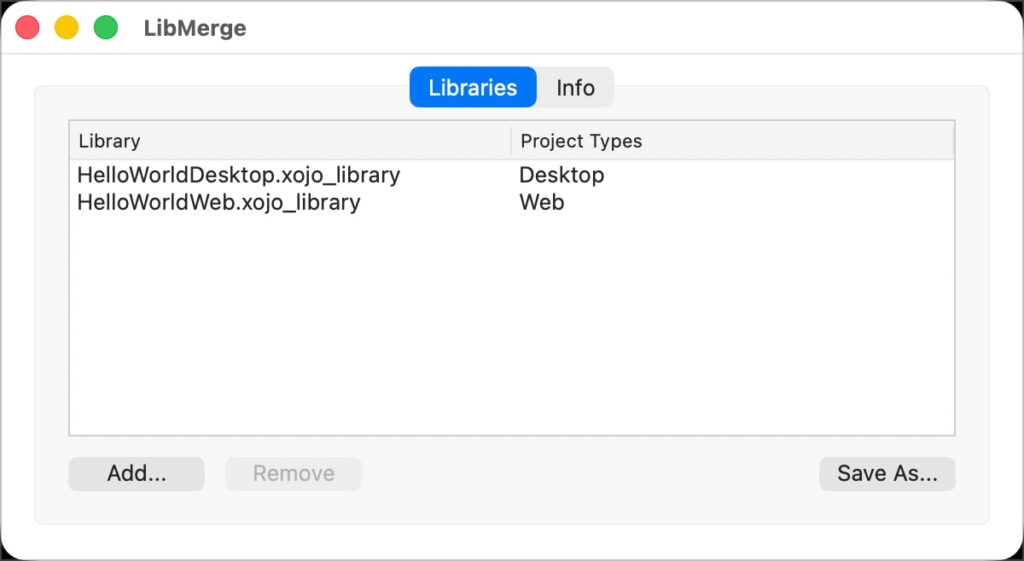
- Download LibMerge for Linux, macOS or Windows. It will be included in the Extras folder in the next major release.
- Launch LibMerge and then click the Add button to select the Libraries you wish to merge or drag them into the Libraries list in the LibMerge window.
- On the Info tab, make sure the Version, Copyright and Description values are as you want them for the merged Library. These initial values are loaded from the first Library you add to the list.
- Click the Save As button to choose a name and location for your merged Library. That’s it!
If you choose two libraries that both already support the same project type, LibMerge will tell you and not load the second Library. Included with LibMerge is the LibMerge Library which you can use to build the merging of Libraries into your own build tools. Check out the included LibMerge API Guide for details. Here is an example:
Try
   Var merge As New LibMerger
   merge.AddLibrary(SpecialFolder.Desktop.Child("MyDesktopLibrary.xojo_library"))
   merge.AddLibrary(SpecialFolder.Desktop.Child("MyWebLibrary.xojo_library"))
   merge.SaveMergedLibrary(SpecialFolder.Desktop.Child("MergedLibrary.xojo_library"))
Catch error as UnsupportedFormatException
   System.Beep
   MessageBox(error.Message)
End Try
Whether you prefer to roll up your sleeves and merge Libraries manually or let LibMerge handle the heavy lifting, Xojo gives you the flexibility to build reusable components that work across all your project types. With a little exploration and the right tools you can streamline your workflow, reduce duplication and keep your projects cleaner and more maintainable. LibMerge makes this process fast and reliable whether you’re merging two Libraries or twenty. Read more about Libraries in the Xojo Documentation.
Geoff Perlman is the Founder and CEO of Xojo. When he’s not leading the Xojo team he can be found playing drums in Austin, Texas and spending time with his family.