
Keeping up with innovation can be challenging, especially when new technologies don’t always align neatly with what came before. Microsoft works hard to find a balance, they experiment, iterate, and refine to discover what their users really want.
We’re taking a similar approach with our WinUI transition. We began with the DesktopXAMLContainer and are continuing by updating our Win32 controls to their WinUI counterparts, aiming for steady progress without disrupting existing workflows.
What can you look forward to in 2025r3?
We’ve expanded our WinUI offerings in this release with a broader set of updated controls. While 2025r2 introduced only a handful of WinUI-backed controls, 2025r3 builds on that foundation by updating a much larger group, including: BevelButton, Label, UpDownArrow, DateTimePicker, ComboBox, PopupMenu, RadioGroup, SegmentedButton, DisclosureTriangle, MoviePlayer, SearchField, TextField, and TextArea.
What are the benefits of using WinUI?
Win32 controls have been the foundation for many Windows apps, but WinUI introduces capabilities that traditional Win32 controls don’t have. Here’s a comparison to highlight some of the differences:

A Win32 DesktopLabel with a colored emoji is rendered in black and white.

Compared to the WinUI version with a colored emoji.

A Win32 DesktopTextField containing right-to-left text isn’t automatically recognized as such, so it renders left-to-right.

Compared to the WinUI version which can automatically detect right-to-left text and formats accordingly.

A password field (via DesktopTextField) with primitive support on Win32.

An actual WinUI version of their PasswordBox control with a preview widget.
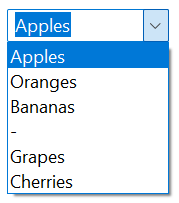
A Win32 DesktopComboBox which does not support separators.
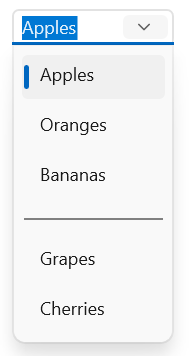
A more modern looking WinUI version with built-in support for separators.
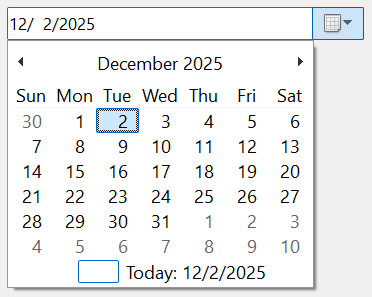
A Win32 DesktopDateTimePicker with a dropdown calendar, but does not support dark mode.
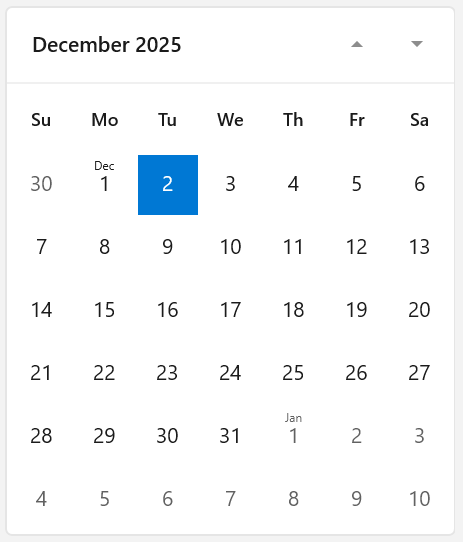
A more modern looking WinUI version that also supports dark mode.
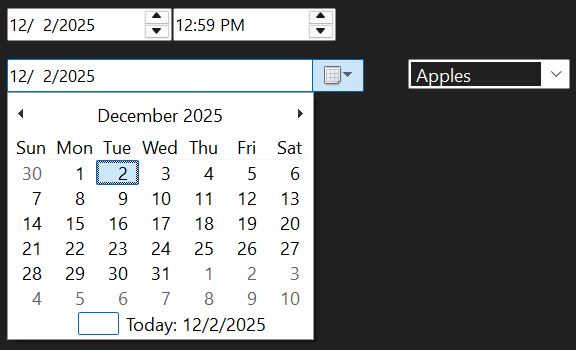
Win32 dark mode support is limited.

WinUI dark mode support is easier on the eyes.
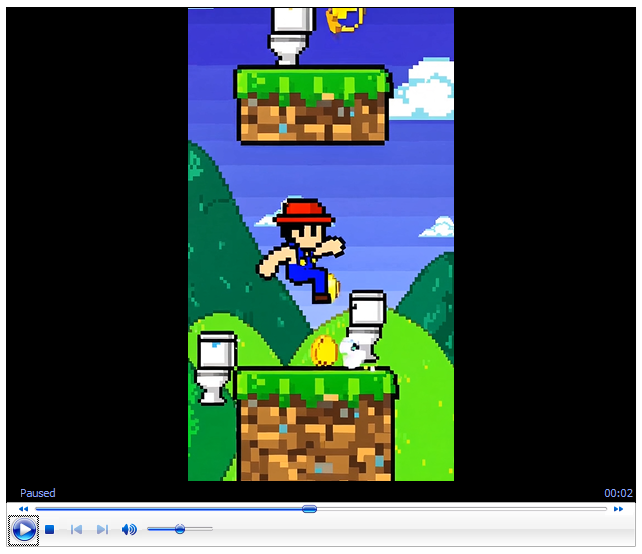
The Win32 DesktopMoviePlayer is very dated.
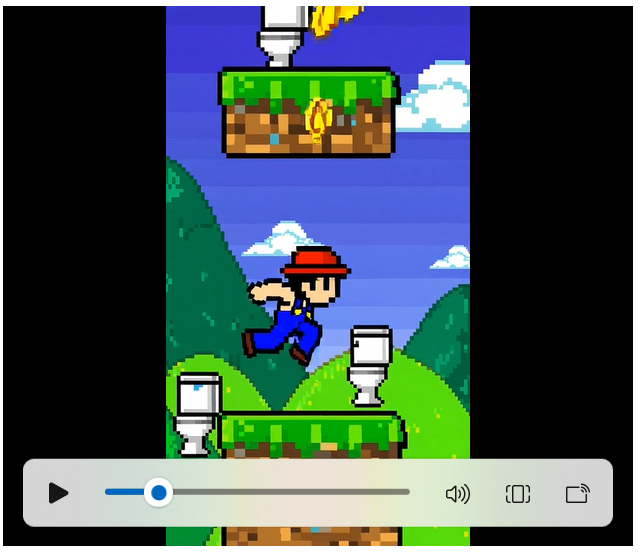
WinUI has a much more modern look and feel.
Opt-in to WinUI
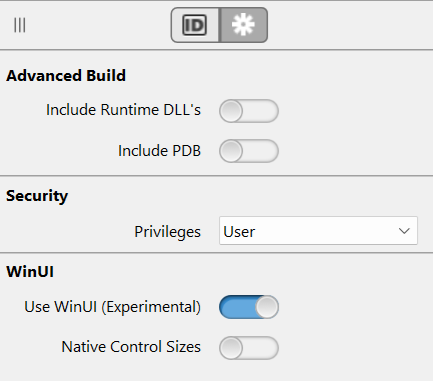
If you’d like to preview how your apps look and feel with WinUI controls, open the Windows build settings and check the options under the Advanced widget tab. Selecting “Use WinUI” applies WinUI styling to your desktop controls while keeping them scaled to your existing Win32 control bounds. Opting into “Native Control Sizes” gives you a more accurate representation of a true WinUI app, using the larger default font size and correspondingly larger controls.
More Work Ahead
As we continue down this path, we’re uncovering pain points that developers face when using WinUI controls in a Win32 environment—challenges Microsoft is no doubt familiar with as well. It will take time before we can fully move away from Win32 controls/windows and embrace WinUI, but we’re steadily heading in that direction. Thanks for joining us on this experience, more to come!
William Yu grew up in Canada learning to program BASIC on a Vic-20. He is Xojo’s resident Windows and Linux engineer, among his many other skills. Some may say he has joined the dark side here in the USA, but he will always be a Canadian at heart.