
The latest updates to DesktopToolbar add new options that make toolbars easier to customize across all platforms, along with support for WinUI on Windows.
These changes focus on two main areas:
- Expanded button symbol support in DesktopToolbarButton
- New layout and presentation control via toolbar style options
Smarter Icon Handling with Symbols
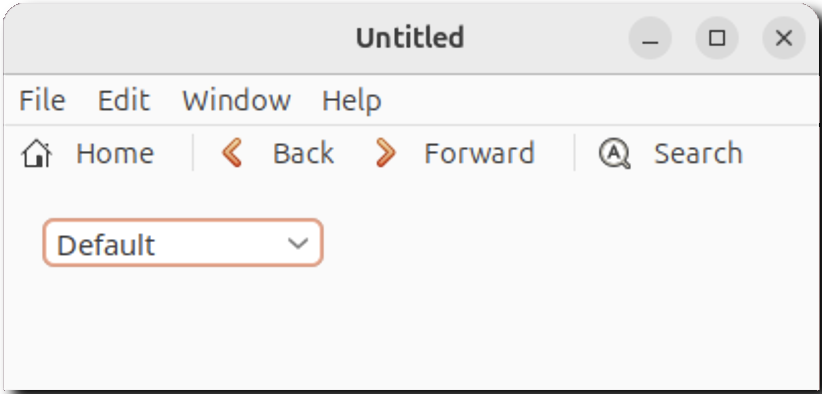
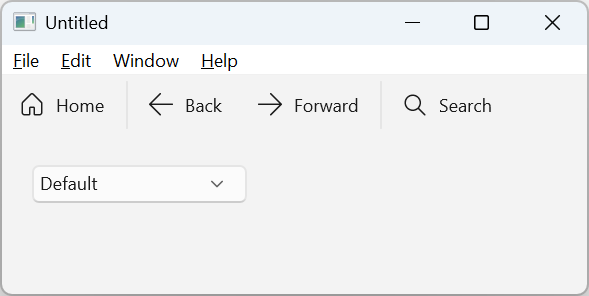
A key addition is the new Symbol property on DesktopToolbarButton. It lets you provide a single string containing multiple symbol names separated by semicolons. Each platform will then check that list and use the first symbol it recognizes.
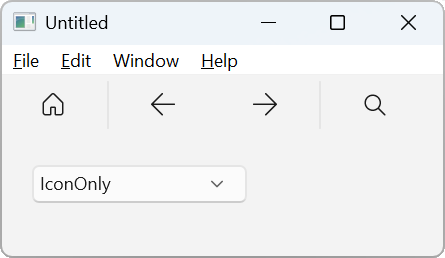
👉 The Symbol feature is only supported on Windows when using the WinUI target.
👉 AllowMulticolorSymbol was added for macOS. When enabled, the OS may render toolbar symbols using multicolor variants where available, instead of enforcing monochrome styling.
Example
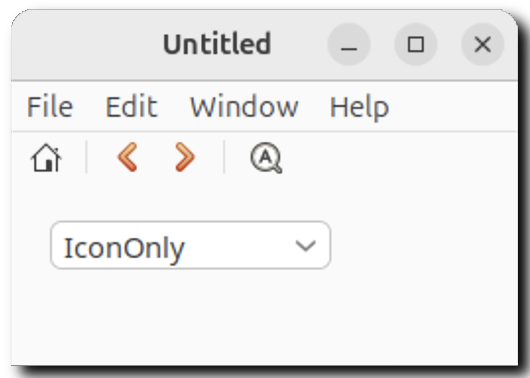
home.Symbol = "house.fill;home;go-home"
home.AllowMulticolorSymbol = True
back.Symbol = "chevron.left;back;go-previous"
forward.Symbol = "chevron.right;forward;go-forward"
search.Symbol = "magnifyingglass;find;system-search"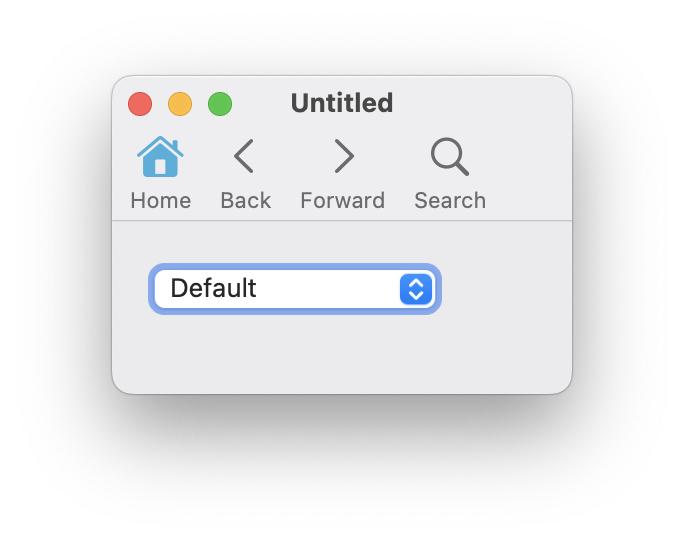
How it works
Instead of relying only on a static icon, the toolbar now attempts to resolve a symbol first. If a symbol is found, it is used in preference to any icon.
The lookup order is:
- First matching symbol in the list
- If none resolve, fallback to the standard icon (if one is set)
This allows you to provide multiple symbolic names as a fallback chain, improving cross-theme and cross-platform reliability.
Where to find the list of supported symbols
WinUI: https://learn.microsoft.com/en-us/uwp/api/windows.ui.xaml.controls.symbol
Linux: https://specifications.freedesktop.org/icon-naming
macOS: https://developer.apple.com/design/human-interface-guidelines/sf-symbols
Better Control Over Toolbar Layout
The toolbar itself now supports a new Style property. This controls how buttons are visually arranged.
DesktopToolbarStyles options:
- Default
- Generally icon/symbol on top, caption below
- On Linux and WinUI: icon/symbol on left, caption on right
- IconCaptionVertical
- Forces vertical layout (icon/symbol above text)
- IconCaptionHorizontal
- Forces horizontal layout (icon/symbol beside text)
- Only supported on Linux and Windows
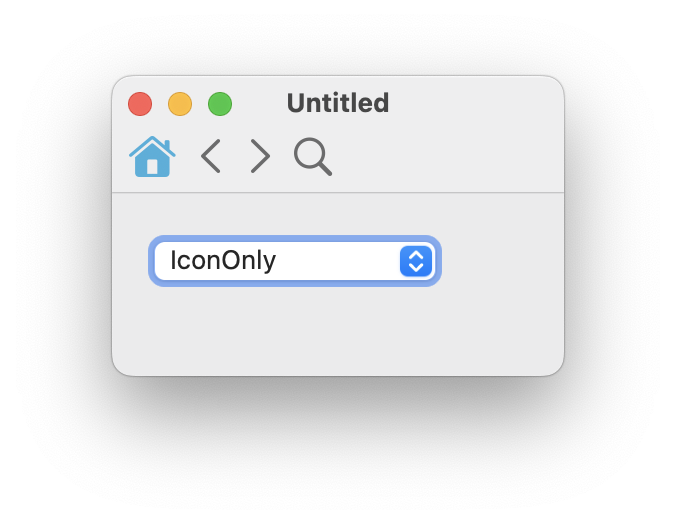
- IconOnly
- Displays only the icon/symbol
- CaptionOnly
- Displays only text labels
In Conclusion
With support for symbols, additional layout styles, and WinUI support on Windows, we’re making it easier to create toolbars that look more modern, feel more native on each operating system, and adapt better to different user environments. Whether you prefer icon-only toolbars, text labels, or platform-specific symbols, the new options give you more ways to fine-tune the experience for your users without adding extra complexity to your projects.
William Yu grew up in Canada learning to program BASIC on a Vic-20. He is Xojo’s resident Windows and Linux engineer, among his many other skills. Some may say he has joined the dark side here in the USA, but he will always be a Canadian at heart.