

Xojo 2025r3 introduces the first iteration of the DesktopGrid control. This long-awaited control allows you to display as many rows and columns as needed, making it ideal for complex data layouts. Let’s take a closer look at some of its features.
Like other controls in the Xojo framework, DesktopGrid is a data-source-based control. Instead of manually adding cells, rows, or columns as you would with a ListBox, the DesktopGrid itself requests the data it needs when it needs it. This approach brings several benefits:
ContainerControl-based cells: The cells in a DesktopGrid are full ContainerControls, just like the ones you’re already familiar with. You can use the same layout for all cells or customize different layouts for individual cells, rows, or columns. Each cell represents a live control and behaves accordingly.
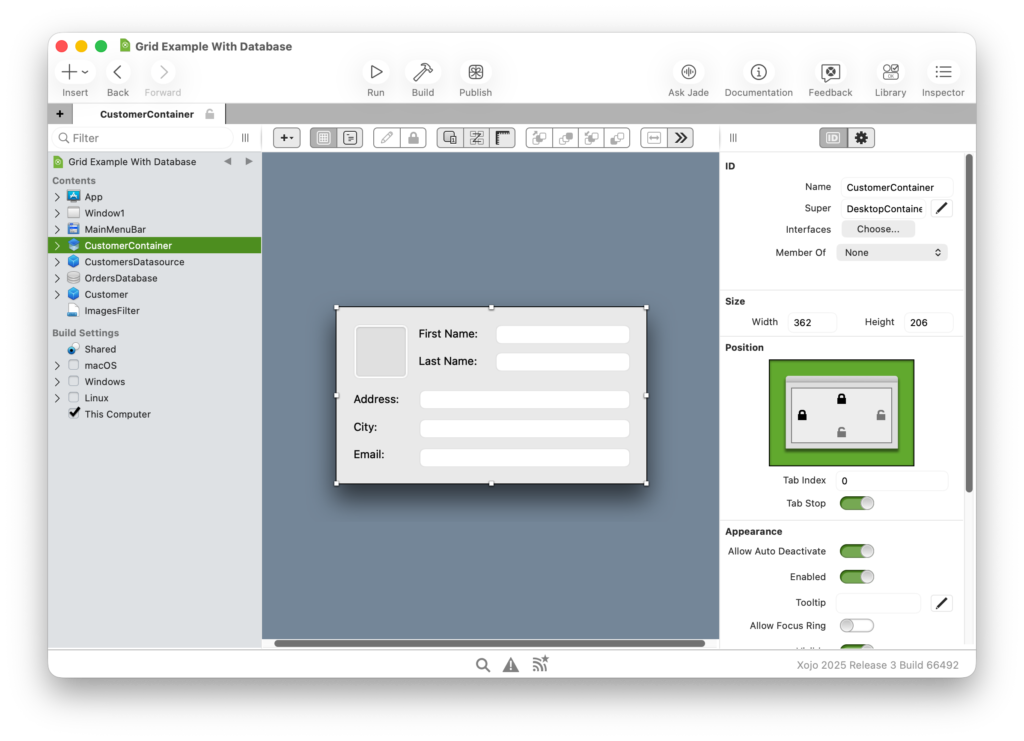
- Lower memory footprint: DesktopGrid keeps only the cells that are currently visible on screen “alive,” which significantly reduces memory usage, especially when working with very large data sets. For example, when you resize the containing window, the DesktopGrid will request additional content from its DataSource only if necessary. When cells move outside the visible area of the DesktopGrid, their corresponding ContainerControl instances are “closed,” triggering an event you can handle, and freeing the memory they were using.
- Faster execution: Large data sets are not preloaded into the control. This means that opening a window with a DesktopGrid or running an app with many cells happens almost instantly, providing a smooth and responsive experience even with extensive data.
- Layout Flexibility: Since the number of rows and columns is determined by the DataSource, a DesktopGrid instance can have a flexible layout rather than a rigid, static one. For example, you can adjust the number of columns based on the available width of the DesktopGrid. You can also set different widths for individual columns, while the row height remains fixed.
- Data representation changes “on the fly”: Because the DataSource provides the content for each cell, you can dynamically change the data representation (the ContainerControl layout) at runtime or even pull data from a completely different source.
- A better separation of responsibilities: While you can implement the GridDataSource interface directly on the DesktopGrid or in its containing Window, using a dedicated DataSource class is the cleaner approach. This ensures a clearer separation between the view (the DesktopGrid), the model (the data feeding the cells), and the controller (which manages interactions between the two). A single DataSource can also feed multiple DesktopGrid instances, making your code more reusable.
- Headers everywhere: By default, DesktopGrid displays column and row headers. You can modify this in the Inspector Panel or via code. Depending on your scenario, you might choose to show both headers, just one, or hide them entirely. By default, the headers display simple numbering for each column and row. However, you can fully customize their content using the PaintHeaderContentForColumn and PaintHeaderContentForRow methods of your GridDataSource implementation, giving you complete control over how headers appear.
Is the DesktopGrid a replacement for DesktopListBox?
While you can use DesktopGrid for many purposes, it is not a direct replacement for DesktopListBox in all scenarios. If your data is primarily textual (like simple labels) or relies on features specific to DesktopListBox, such as hierarchical data representation, then DesktopListBox is still the better choice.
DesktopGrid shines in scenarios where you need complex layouts in each cell using live controls rather than temporary pictures or workarounds. Each cell can have its own layout, including interactive controls such as ListBoxes, buttons, or other reactive elements that respond to user interactions. This makes DesktopGrid ideal for rich, interactive, and highly customizable grid layouts.
Performance Caveats to Consider
Although the first iteration of DesktopGrid was designed with performance in mind, there are some factors that may affect its redraw speed. The most significant is that each cell uses live controls, so performance will be similar to placing the same number of controls directly on a Window. While alternative approaches—such as reusable cells or backing picture representations—could improve speed, they come with their own trade-offs.
As a general rule, performance depends on cell size and the number of visible cells at any given time. A large DesktopGrid with many rows and columns, even if each cell contains just a simple label, may experience slower refresh rates. Additionally, actual performance can vary depending on the operating system and its version, as these affect the underlying drawing and refresh processes.
Wiring the Grid
Although this is just the first iteration of the DesktopGrid control, we are already working on the next set of features while further refining the existing ones. You can read more about this control in the Xojo Documentation. We want to extend a big THANK YOU to everyone who provided feedback and dedicated their time testing the Grid during the beta cycle, you know who you are! Your input is invaluable, and the feature requests you submitted (combined with others already on our roadmap) will help shape a DesktopGrid that better fits your needs.
Javier Menendez is an engineer at Xojo and has been using Xojo since 1998. He lives in Castellón, Spain and hosts regular Xojo hangouts en español. Ask Javier questions on Twitter at @XojoES or on the Xojo Forum.