
As you may already know, starting with Xojo 2025r3, macOS apps can be developed and compiled with UI Compatibility Mode either enabled or disabled. Now imagine you are creating a Library intended for use in other projects and, as part of its UI-related functionality, the Library needs to determine whether the host application is running with UI Compatibility Mode enabled. How can you do that? Read on to find out.
To determine whether a macOS app is running with UI Compatibility Mode enabled, we’ll use a small set of Declares inside a method contained in a Module, purely for the purposes of this example. Begin by creating a new Desktop project and adding a new Module to it (for example, a simple “Module1”). Next, add a new method to the Module with the following signature:
IsCompatibilityModeEnabled As Boolean
Then add the following code to the method:
#If TargetMacOS Then

  If System.Version.MajorVersion >= 26 Then

    Declare Function NSClassFromString Lib "Foundation" (clsName As CFStringRef) As Ptr
    Declare Function NSMainBundle Lib "AppKit" Selector "mainBundle" (obj As Ptr) As Ptr
    Declare Function NSInfoDictionary Lib "AppKit" Selector "infoDictionary" (obj As Ptr) As Ptr
    Declare Function NSDictValueForKey Lib "AppKit" Selector "valueForKey:" (obj As Ptr, key As CFStringRef) As Ptr
    Declare Function NSGetBoolValue Lib "AppKit" Selector "boolValue" (obj As Ptr) As Boolean

    Var Bundle As Ptr = NSClassFromString("NSBundle")

    If Bundle <> Nil Then
      Var MainBundle As Ptr = NSMainBundle(Bundle)

      If MainBundle <> Nil then
        Var infoDictionaryPlist As Ptr = NSInfoDictionary(MainBundle)

        If infoDictionaryPlist <> Nil Then
          Var valueObj As Ptr = NSDictValueForKey(infoDictionaryPlist, "UIDesignRequiresCompatibility")

          If valueObj <> Nil Then
            Return NSGetBoolValue(valueObj)
          End If

        End If

      End If

    End If
  End If

  Return False

#EndIf
In short, the previous code retrieves the app’s Info.plist from the macOS bundle and loads it into an NSDictionary object (similar to Xojo’s Dictionary). It then attempts to access the value associated with the key UIDesignRequiresCompatibility. If the returned object is Nil, it means the Info.plist does not contain that key and the app is therefore running in native macOS Tahoe mode. If the key is present, the method returns the Boolean value associated with it; a value of True indicates that the app is running with UI Compatibility Mode enabled under macOS Tahoe. That’s all there is to it!
Testing the Method
Now add a DesktopButton to the project’s default window and implement its Pressed event. Next, insert the following line of code into the associated Code Editor:
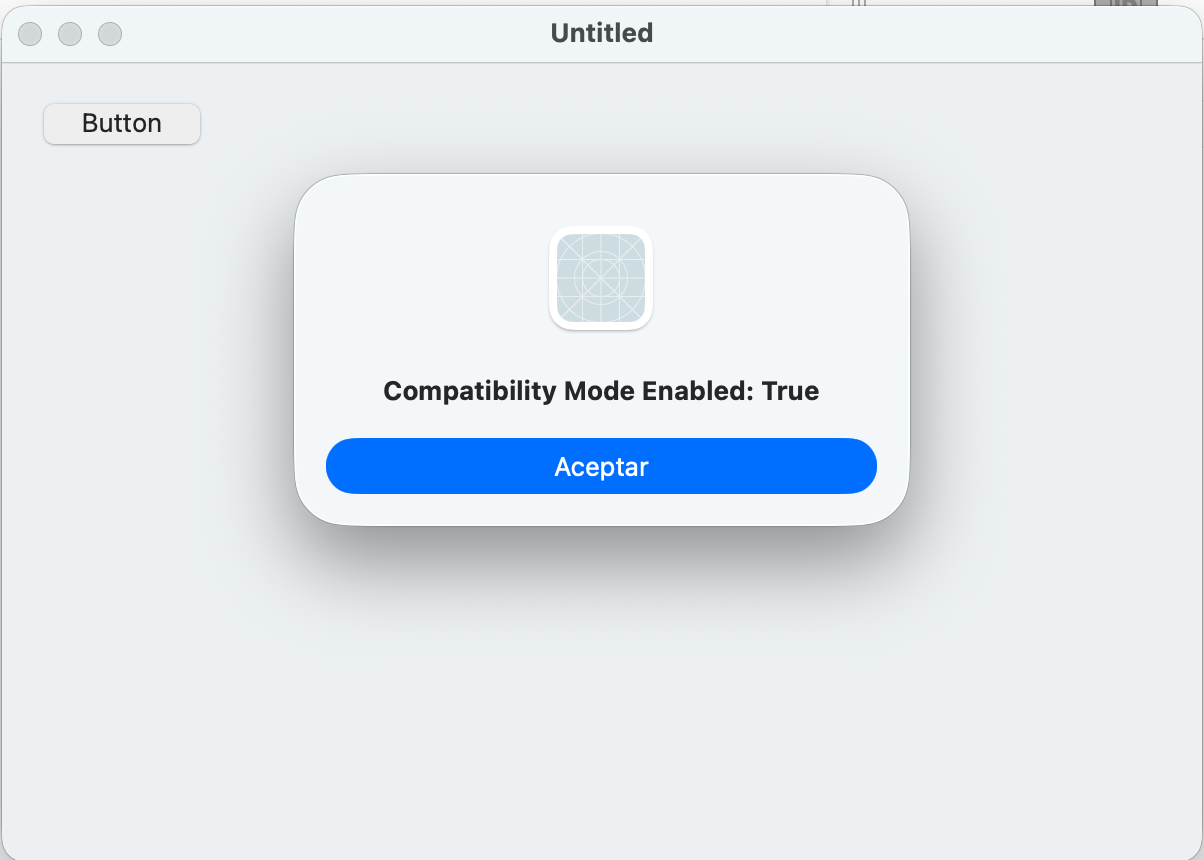
MessageBox("Compatibility Mode Enabled: " + IsCompatibilityModeEnabled.ToString)For testing purposes, select Build Settings > macOS in the Project Browser and enable UI Compatibility Mode, which can be found under the Build section of the Inspector. Run the app and, if your Mac is running macOS 26 or later, you will see the following message:
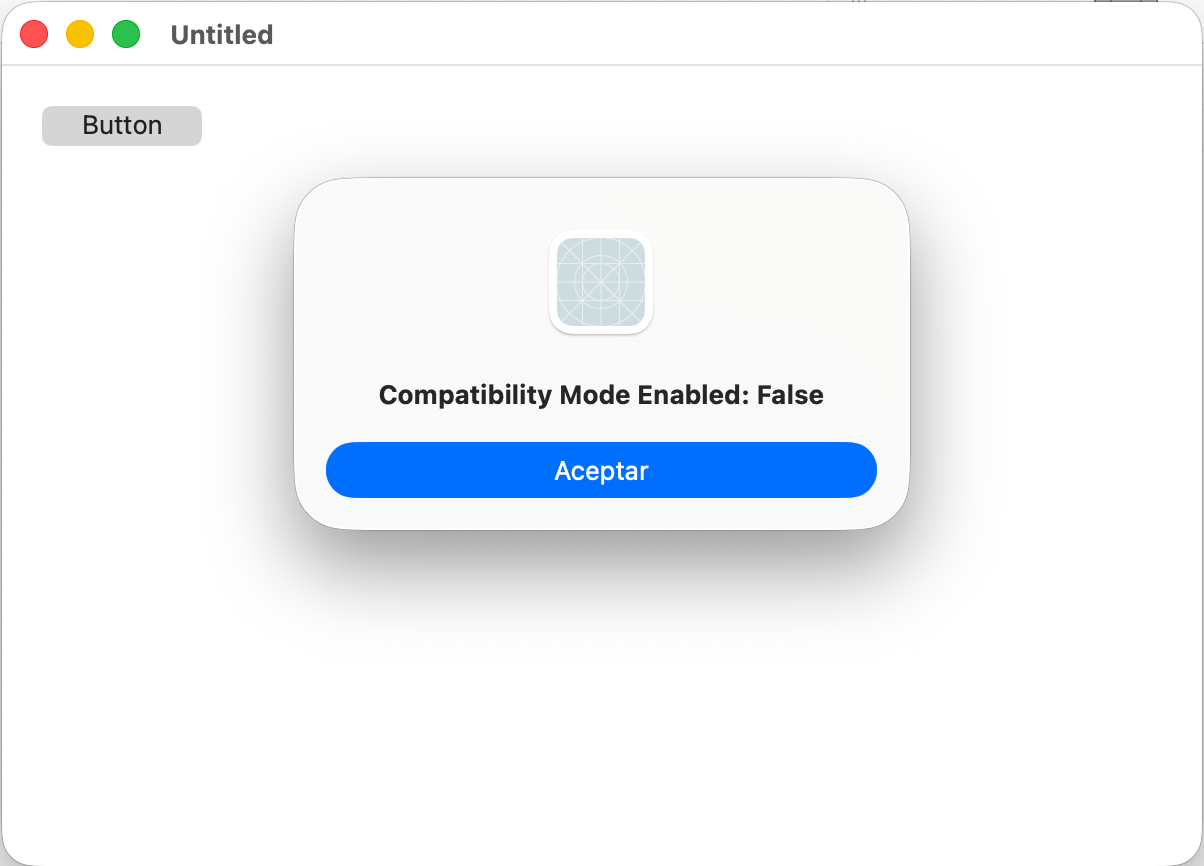
Quit the app and return to Build Settings > macOS to disable UI Compatibility Mode. Run the app again and this time you will see the following message:
In Summary
As you can see, Declares are a powerful feature in Xojo’s extensive toolbox, allowing developers to directly access and use APIs provided by the operating system. In this case, they enable you to retrieve the app’s Info.plist from the main bundle, load it into a dictionary, and read the value associated with a specific key.
Javier Menendez is an engineer at Xojo and has been using Xojo since 1998. He lives in Castellón, Spain and hosts regular Xojo hangouts en español. Ask Javier questions on Twitter at @XojoES or on the Xojo Forum.