
Sooner or later most apps need some version of the ability to find text in those files, whether you’re scanning log files, config files, exported data, or source code.
In this post, we’ll build a simple Find in Files utility in Xojo that:
- searches the files in a folder
- reads each file line by line
- performs a plain-text, case-insensitive match
- returns the file path, line number, and matching line
The goal is simple: build something useful while leaving the door open for the fancier stuff.
What this Find in Files function will do
Let’s keep the scope clear:
- search one folder
- search plain text only
- skip subfolders for now
- return the matching file path, line number, and line contents
Step 1: A class in a module and some properties
Before touching the file system, let’s define what a match looks like.
You could return raw strings, but that gets messy fast. A small class keeps the code readable and gives us an obvious place to extend later. In this version, I like keeping that class inside the same module as the search function. It keeps the entire utility self-contained instead of spraying helper types all over the project.
So, we start by adding a module SearchUtils and inside the module we will add a class SearchHit.
Module SearchUtils

  Class SearchHit

    Public Property FilePath As String
    Public Property LineNumber As Integer
    Public Property LineText As String

    Public Sub Constructor(filePath As String, lineNumber As Integer, lineText As String)
      Self.FilePath = filePath
      Self.LineNumber = lineNumber
      Self.LineText = lineText
    End Sub

  End Class

End Module
Each result stores three things:
- the file path
- the line number
- the matching line
Step 2: Walk through the folder
FolderItem.Children lets us loop through a folder with a For Each loop, which keeps the code clear.
We’ll also reject bad input early:
- the folder is
Nil - the folder does not exist
- the item passed is not actually a folder
- the search term is empty
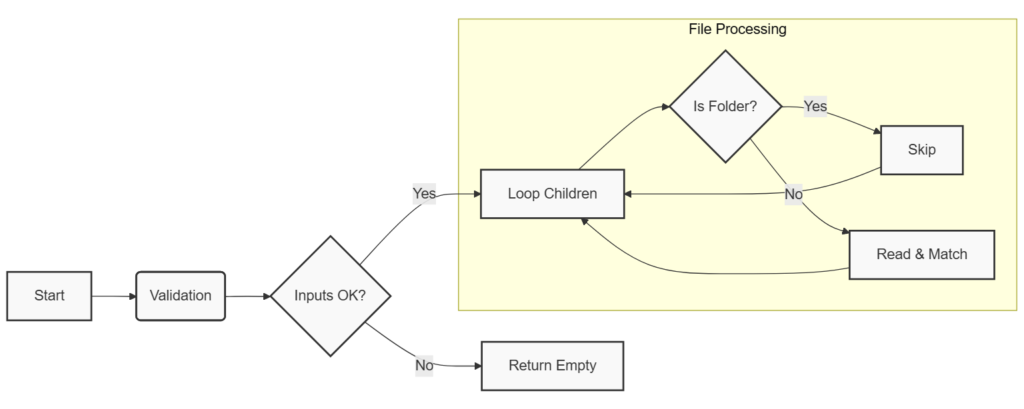
This process is simple, fast and effective.
Step 3: Read files line by line
For text files, TextInputStream.Open is the right tool. From there, we can call ReadLine until EndOfFile becomes True.
I prefer this over ReadAll for a utility like this. ReadAll is fine when the file is small and you know what you’re doing, but line-by-line reading is a better default here. It keeps memory use in check and gives us line numbers for free.
For the sample code, I’m explicitly using UTF-8:
input.Encoding = Encodings.UTF8That keeps the sample predictable. It does not mean this code can gracefully decode every text file you throw at it. Files with unknown encodings or binary-ish content are a separate problem, and they deserve their own solution.
Step 4: Match the text
For a plain-text search, String.Contains does exactly what we need:
line.Contains(searchTerm, ComparisonOptions.CaseInsensitive)It handles the case-insensitivity without the overhead, or the headache, of regex.
Step 5: The full module and class and function
Module SearchUtils

  Public Class SearchHit
    Public Property FilePath As String
    Public Property LineNumber As Integer
    Public Property LineText As String

    Public Sub Constructor(filePath As String, lineNumber As Integer, lineText As String)
      Self.FilePath = filePath
      Self.LineNumber = lineNumber
      Self.LineText = lineText
    End Sub
  End Class

  Public Function FindInFiles(targetFolder As FolderItem, searchTerm As String) As SearchHit()
    Var hits() As SearchHit

    If targetFolder Is Nil Then
      Return hits
    End If

    If Not targetFolder.Exists Or Not targetFolder.IsFolder Then
      Return hits
    End If

    If searchTerm.IsEmpty Then
      Return hits
    End If

    For Each item As FolderItem In targetFolder.Children
      If item Is Nil Then Continue
      If item.IsFolder Then Continue
      If Not item.Exists Then Continue
      If Not item.IsReadable Then Continue

      Try
        Var input As TextInputStream = TextInputStream.Open(item)
        input.Encoding = Encodings.UTF8

        Var lineNumber As Integer = 0

        While Not input.EndOfFile
          Var line As String = input.ReadLine
          lineNumber = lineNumber + 1

          If line.Contains(searchTerm, ComparisonOptions.CaseInsensitive) Then
            hits.Add(New SearchHit(item.NativePath, lineNumber, line))
          End If
        Wend

        input.Close

      Catch error As IOException
        ' Skip files that cannot be read as text.
        Continue
      End Try
    Next

    Return hits
  End Function

End Module
How it works
Let’s break down the important parts.
Input validation
This block prevents pointless work and avoids avoidable runtime problems:
If targetFolder Is Nil Then
  Return hits
End If

If Not targetFolder.Exists Or Not targetFolder.IsFolder Then
  Return hits
End If

If searchTerm.IsEmpty Then
  Return hits
End If
Rule of thumb: reject bad input early.
Folder iteration
This is the core loop:
For Each item As FolderItem In targetFolder.ChildrenWe’re only scanning the folder’s immediate contents. If an item is another folder, we skip it.
If item.IsFolder Then ContinueSafe text reading
Each file is opened with TextInputStream.Open inside a Try...Catch block:
Try
  Var input As TextInputStream = TextInputStream.Open(item)
  input.Encoding = Encodings.UTF8
  ...
Catch error As IOException
  Continue
End Try
That way, one unreadable file does not take down the whole search. It gets skipped and the rest of the folder still gets processed.
Line-by-line matching
This is where the actual work happens:
While Not input.EndOfFile
  Var line As String = input.ReadLine
  lineNumber = lineNumber + 1

  If line.Contains(searchTerm, ComparisonOptions.CaseInsensitive) Then
    hits.Add(New SearchHit(item.NativePath, lineNumber, line))
  End If
Wend
Because we’re reading one line at a time, attaching the correct line number is trivial.
Why keep SearchHit inside the module?
Because it belongs to this utility. The search function and its result type are part of the same little unit of behavior, so keeping them together makes the project easier to scan and easier to transform it to a Library.
It also means code outside the module uses the namespaced type:
Var results() As SearchUtils.SearchHit = SearchUtils.FindInFiles(folder, "xojo")Using the function
Here’s a simple example that lets the user choose a folder and then writes the results to the debug log:
Var folder As FolderItem = FolderItem.ShowSelectFolderDialog
If folder Is Nil Then Return

Var results() As SearchUtils.SearchHit = SearchUtils.FindInFiles(folder, "error")

For Each hit As SearchUtils.SearchHit In results
  System.DebugLog(hit.FilePath + " | line " + hit.LineNumber.ToString + " | " + hit.LineText)
Next
If you want to display the results in a DesktopListBox, that works nicely too:
Var folder As FolderItem = FolderItem.ShowSelectFolderDialog
If folder Is Nil Then Return

Var results() As SearchUtils.SearchHit = FindInFiles(folder, "error")

ListBox1.RemoveAllRows
ListBox1.ColumnCount = 3

For Each hit As SearchUtils.SearchHit In results
  ListBox1.AddRow(hit.FilePath)
  ListBox1.CellTextAt(ListBox1.LastAddedRowIndex, 1) = hit.LineNumber.ToString
  ListBox1.CellTextAt(ListBox1.LastAddedRowIndex, 2) = hit.LineText
Next
A few sample results might look like this:
C:\Logs\app.log | line 18 | Error connecting to database
C:\Logs\app.log | line 42 | Error writing audit record
C:\Configs\service.txt | line 7 | Last error message: timeout
Practical limitations of this version
This utility is useful, but limited.
It assumes UTF-8
That is fine for plenty of modern text files, but not all of them. If you’re dealing with mixed encodings, you’ll need a smarter approach that detects the file encoding.
It doesn’t recurse into subfolders
That is deliberate. Recursive search is useful, but it adds another layer of behavior and another place to make the code harder to read.
Final thoughts
A basic Find in Files function is one of those utilities that looks small but pays off quickly. This is a base-layer utility. Once you have this working, adding recursion or regex is a much smaller lift.
Let’s discuss in the forums.
Gabriel is a digital marketing enthusiast who loves coding with Xojo to create cool software tools for any platform. He is always eager to learn and share new ideas!