
In recent weeks I received several questions regarding Xojo iOS, many from users who already use Xojo for desktop or web development and want to start using Xojo for mobile, particularly iOS, development. I’ve compiled some of their questions together with some other tips into this mini-FAQ.
I’ll update this FAQ from time to time, so you may want to bookmark it and revisit! In addition, the Xojo Forum is a great place to keep the conversation about this and other iOS Xojo-related topics!
Can I develop iOS apps on Windows?
No. Running, testing, or debugging an iOS project in Xojo requires the iOS Simulator which is provided only with Apple’s Xcode and is only available on macOS. We advise using ARM processor based Macs that are updated to the latest version of macOS. You can review the system requirements for building iOS apps with the latest Xojo release.
Do I need to install anything besides Xojo?
In addition to Xojo, you’ll need to install Xcode and run it at least once in order to accept to the provided agreements and to get logged-in into your developer account from the Xcode preferences (mostly in order to install the Developer Certificates).
Make sure there is, at least, an iOS SDK installed – it should already be there because it is done automatically during Xcode’s first installation (and subsequent Xcode updates).
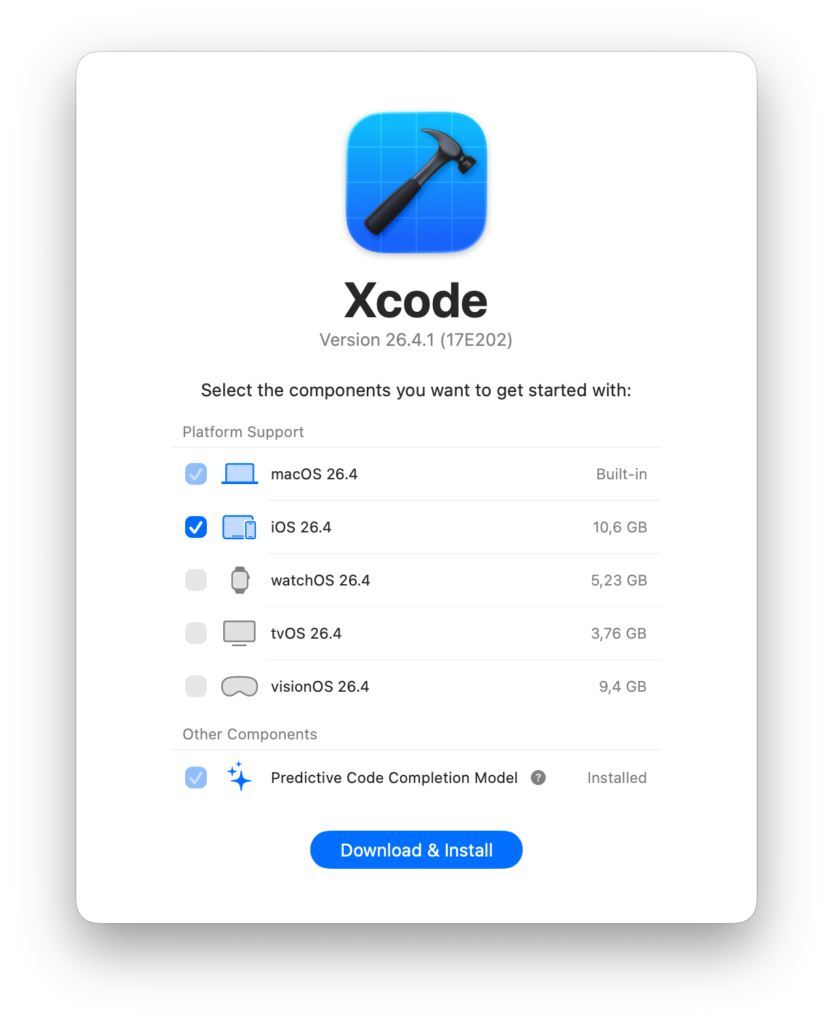
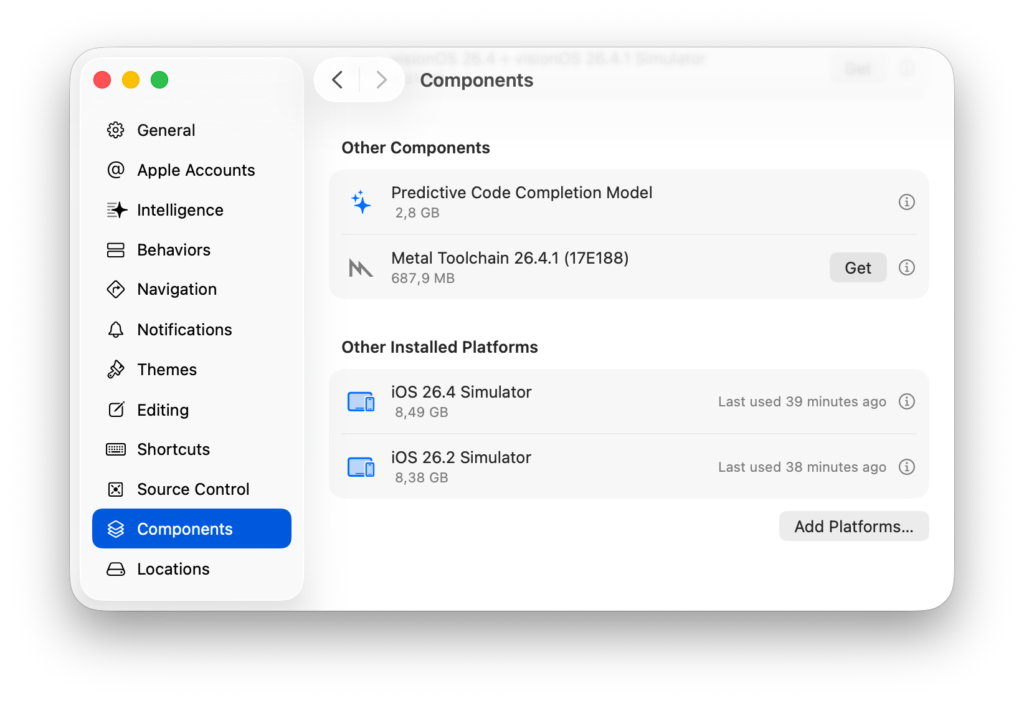
In addition, if needed, you can download additional iOS SDKs from Xcode > Preferences > Components.
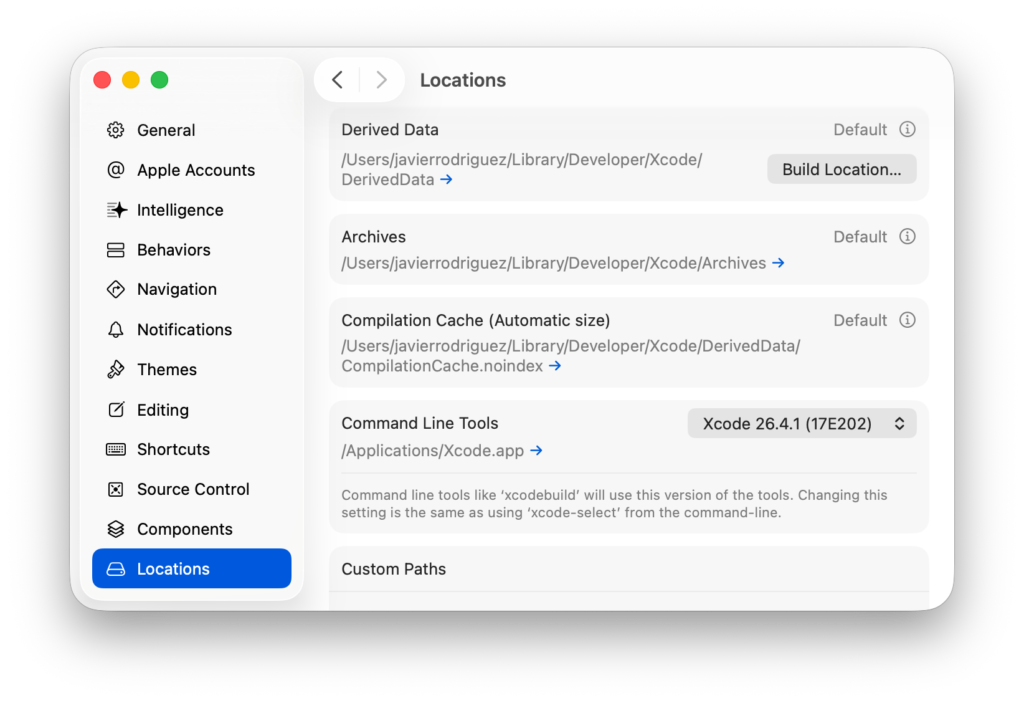
Also, make sure that the Xcode CLI tools are installed, because Xojo needs these in order to create the package during the build process. You can set these under Xcode > Preferences > Locations.
Why are the Run and Build buttons disabled for my iOS projects in Xojo?
There could be a few reasons for this.
- Check that the CLI tools are selected in Xcode. See previous point.
- Launch Xcode to make sure you have agreed to the license agreement and that there are no Xcode issues that jump out.
- Are you signed into the Xojo IDE with the account that holds your Xojo Mobile license? Open the license key window in the Xojo app and verify your license is there. If not, sign in to the IDE to automatically add your license. Check Troubleshooting tips for licenses.
I don’t see a Simulator under Xojo Project > Run On menu… what can I do about that?
Quit Xojo and re-open it. You should now see the same Simulators installed on Xcode under that Xojo submenu.
Do I need to keep Xcode open while using Xojo?
No. That is not necessary at all!
Everything was working fine… but now I can’t run or build iOS apps. Why?
It’s likely there is a new agreement you need to accept from Apple. Go to the Apple Developer Portal log-in using your developer credentials and check if there are new or updated agreements.
Another thing to check for are expired provisioning profiles or missing or expired Developer Certificates. If so, you need to create new ones.
And of course make sure your Xojo license is listed in the license key window. Are you signed into the Xojo IDE with the account that holds your Xojo Mobile license? Open the license key window in the Xojo app and verify your license is there. If not, sign in to the IDE to automatically add your license. Check Troubleshooting tips for licenses.
Can I use Xojo iOS if I have a free Apple Developer Account?
In short: yes. Free Apple Developer Accounts are those you can create using an Apple Account. That is, the same you use in order to access other Apple services. But, even if it is possible to use a free developer account, these have some limitations compared with the paid Apple Developer account. The following table summarizes these:
| Apple Account | Apple Developer Program | |
|---|---|---|
| Xcode developer tools | ● | ● |
| Xcode beta releases | ● | ● |
| On-device testing | ● | ● |
| Advanced app capabilities and services | ● | |
| App distribution | ● | |
| Ad hoc distribution for testing and internal use | ● |
In addition, you need to also consider the following limitations:
- The number of App IDs that can be registered is limited to 10 and each expires after 7 days.
- The number of test devices that can be registered to the account is limited to 3, and each expires after 7 days.
- Provisioning profiles will expire 7 days from issuance, which may require you to rebuild and re-install your app to your device after expiration.
There are some free tools you can use to skip these limitations, but they are not officially supported, for example Sideloadly (in fact this one can be used even on Windows).
I have a free Apple Developer account and I followed all the previous steps and I still can’t run my app from Xojo.
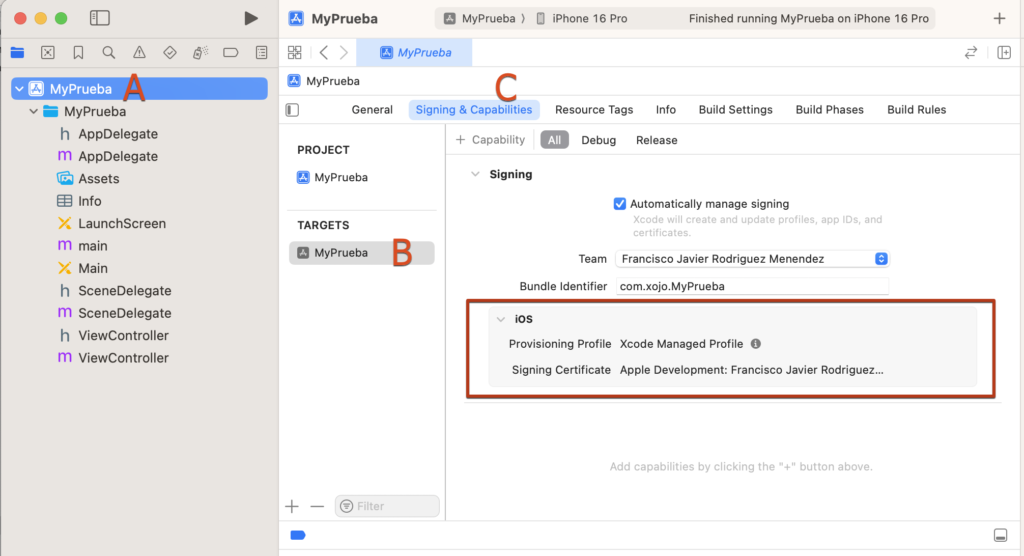
In order for an iOS app to run it requires a provisioning profile. These can be created from the Apple Developer website or you can let Xcode handle them. If you don’t have a lot of experience with iOS development (or Apple platforms development in general), then the easiest way forward is to use the following steps which allow Xcode to create the provisioning profile for your specific app. These steps are for the most basic provisioning profile; one that doesn’t include the use of any of specific Apple services or technologies that require being included in such provisioning profile:
- Open Xcode and create a new iOS project.
- Give the project the same Bundle Identifier as the one you are going to use in your Xojo project.
- In the main area of the Xcode window, select the item for the project root (A).
- Then, select the target item from the Targets section (B).
- Next, select the Signing & Capabilities tab. Make sure your Team is selected and the Bundle Identifier is the same one you are using for your Xojo app (C).
- As result of the selections made, you will see the area corresponding to the (Xcode managed) provisioning profile that is going to be created.
- Make sure a Simulator is selected and then run the App from Xcode. That action will open the selected Simulator and will run the blank app into it.
- Because a provisioning profile has already been created, go back to Xojo and you will be able to run your Xojo app. If that is not the case, quit Xojo and reopen it so the IDE can find the just generated provisioning profile from Xcode.
Are there other ways to install my iOS apps to my registered devices without going through the App Store?
Yes. You can install built iOS apps on the devices previously registered in your developer account through what is called sideloading using Xcode.
Once the app has been built using Xojo (it creates a package – IPA file), go to Xcode > Devices and Simulator, select the device and drop the package onto the area showing the apps installed on that device. That action will initiate the copy (installation) of your iOS app on that specific device.
Take into consideration that this kind of installation allows the app to run for one year; that is, the timespan the provisioning profile lasts for that particular app. Once the provisioning profile expires, you will need to repeat the process: build the app with a new provisioning profile, and copy it again into the device.
Is it possible to distribute Xojo-created iOS Apps through the App Store?
Of course! In fact the Xojo IDE greatly simplifies the process of building and uploading directly your iOS apps to the App Store Connect portal, both for starting the required Apple review process previous for the app being available through the App Store, or if you simply want to distribute your betas to your beta-testers using Testflight.
In order to distribute iOS apps through the App Store you will need a paid Apple Developer membership.
Helpful Resources
As always, Xojo provides resources for free, no license needed to access our user forum, documentation, videos and other resources.
- Xojo iOS Quickstart
- Xojo iOS Tutorial
- How to Publish macOS and iOS Apps to the App Store Directly from Xojo
- Differences between iOS and Android
- Getting the user’s location from their mobile device
- How to apply a blur effect on iOS
- Sending and receiving mobile notifications
- Loading 3rd Party Frameworks in Xojo iOS
- iOS related posts on the Xojo Blog
Javier Menendez is an engineer at Xojo and has been using Xojo since 1998. He lives in Castellón, Spain and hosts regular Xojo hangouts en español. Ask Javier questions on Twitter at @XojoES or on the Xojo Forum.