
Debugging isn’t just about stepping through code anymore, it’s about understanding how your data behaves over time. With the new watchpoints feature in Xojo, you can now monitor variables and object properties more intelligently, without constantly stepping line by line or adding logging just to see when values change.
What Are Watchpoints?
Watchpoints let you pause execution when the value of a variable or property changes. Instead of asking “how did I get here?”, watchpoints help you answer “when did this change?”
This is especially useful when:
- A value is being modified unexpectedly
- Multiple parts of your code interact with the same object
- You’re tracking down subtle state-related bugs
How Watchpoints Work
Setting up a watchpoint requires pausing execution where you would like to start monitoring the variable or property of an object.
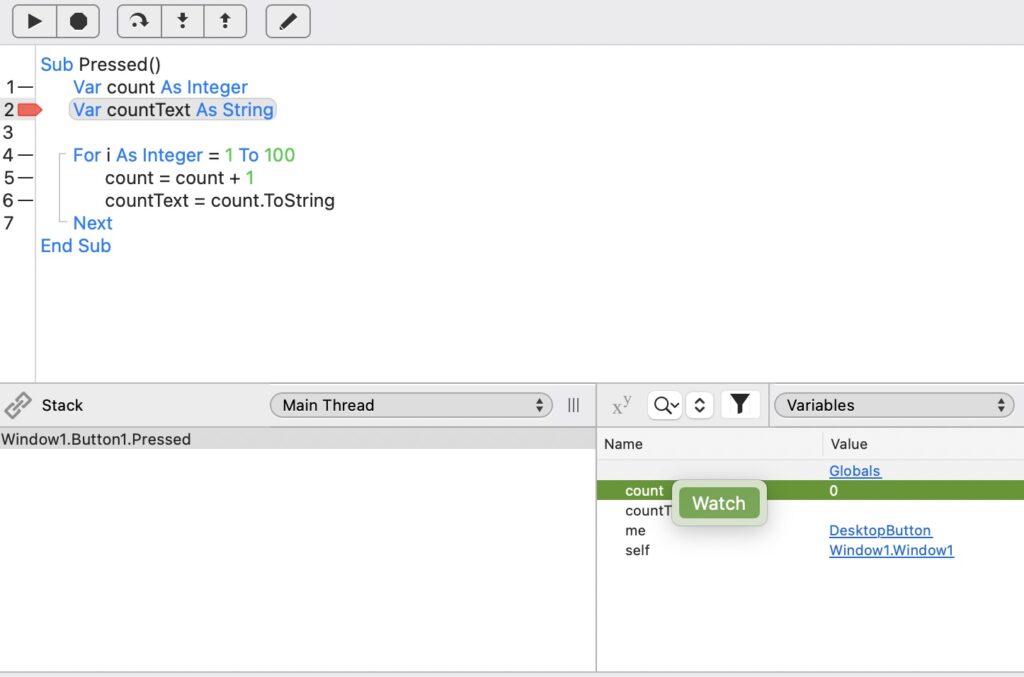
In this example, we want to monitor the count variable, so you can right-click it in the variables debugger list and select Watch from the context menu. Once a watchpoint is set on a variable or property, the debugger keeps track of its value during execution. When the value changes, execution pauses and shows the line that triggered the change. Notice that the watchpoint break line is highlighted differently from the current execution line, and a Watchpoints list is now displayed.
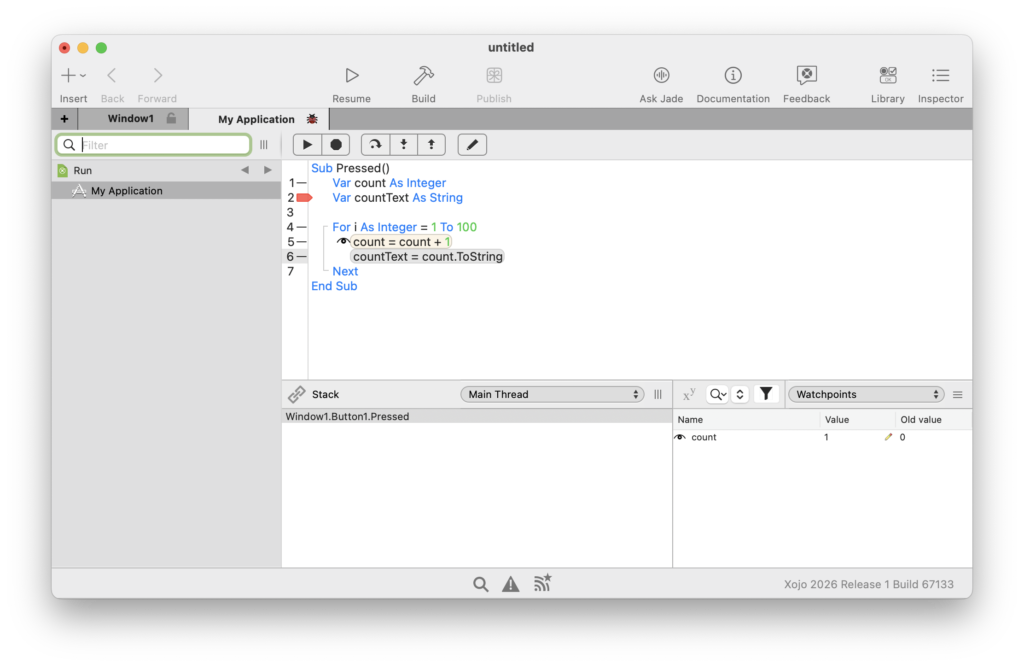
This gives you immediate visibility into:
- What code caused the modification
- What the previous and new values are
- What the surrounding state looks like
Why This Matters
Traditionally, tracking down a value change required manually stepping through code or adding temporary logging. Both approaches are time-consuming and error-prone.
Watchpoints eliminate that friction by:
- Reducing the need for repetitive stepping
- Highlighting only meaningful changes
- Letting you focus on the root cause faster
Conditional Watchpoints
Watchpoints in Xojo aren’t limited to triggering on every change—you can make them conditional. For example, you can break only when a value is equal to, greater than, or less than a specific threshold, or even when it falls within a defined range. For string, both case-sensitive and case-insensitive comparisons are supported. This makes it much easier to focus on the changes that actually matter, especially when a variable updates frequently but only becomes problematic under certain conditions.
To add a condition to a watchpoint, right-click the watched variable or property and choose Edit Watchpoint Expression from the context menu.
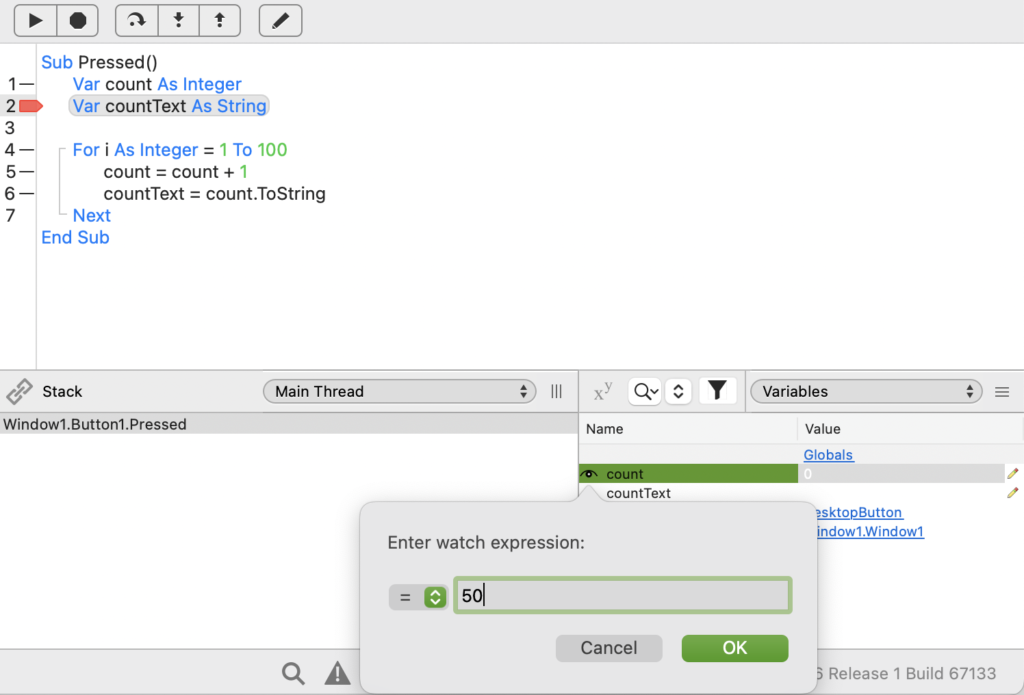
The expression editor adapts based on the type of variable or property you’re watching, providing hints about what values and conditions you can enter.
Handling Object Lifetimes
One important detail when working with watchpoints is object lifetime.
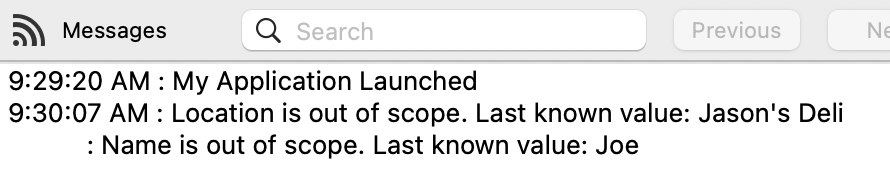
If a watchpoint is attached to a property of an object that goes out of scope or is destroyed, the debugger can no longer track it. In these cases, Xojo provides feedback through the Messages pane so you know the watchpoint is no longer valid, along with the last known value.
What works and what doesn’t
You can set watchpoints on most variables and properties, even variants; however, Arrays, Structures, and computed properties are not supported. Code within #pragma DisableBackgroundTasks or #pragma Debug False blocks will not trigger watchpoint breaks. Watchpoints are also not currently available for Android projects.
Final Thoughts
Watchpoints bring a new level of precision to debugging in Xojo. Instead of chasing bugs through code, you can now let the debugger do the work of tracking down exactly where things go wrong.
Give them a try in your next debugging session—you might find yourself solving problems faster than ever!
William Yu grew up in Canada learning to program BASIC on a Vic-20. He is Xojo’s resident Windows and Linux engineer, among his many other skills. Some may say he has joined the dark side here in the USA, but he will always be a Canadian at heart.