
In our previous posts, we built a utility to find text inside files within a single folder, and then added recursion to crawl subfolders. But if you ran that code on a large directory, like your entire Documents folder, you probably noticed two big problems:
- The UI froze completely until the search finished.
- If the folder tree was deep enough, you might have hit a
StackOverflowException. - We haven’t actually built a proper UI for it yet!
Today, we’re fixing all three. We’ll introduce a custom app UI, create a Thread subclass to perform the search in the background, and swap our recursive folder crawl for a flatter, iterative approach to spare our stack memory. We’ll also add a file size limit to avoid choking on massive unreadable files.
Step 1: Designing the UI
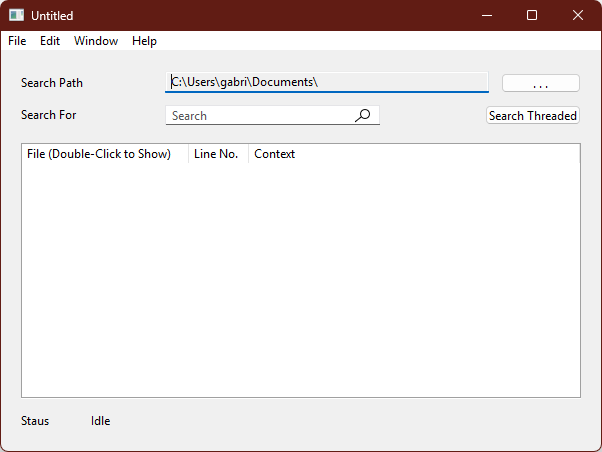
First, let’s build the interface so you have a real application to run. On your main Window1 (or whichever Window you are using), we need to add a few controls:
- Path Selection: Add a
DesktopTextField(namedfieldPath, set to ReadOnly) to display the chosen folder path, and aDesktopButton(namedbuttonSelectPath, caption...) next to it to open aSelectFolderDialog. - Search Input: Add a
DesktopSearchField(namedfieldSearchTerm) where the user types the text they want to find. - Action Button: Add a
DesktopButton(namedbuttonSearchThreaded, captionSearch Threaded) to start and cancel the search. - Results List: Add a
DesktopListBox(namedlistResults) and set its Column Count to 3. (Optional: Set the InitialValue of the Column headers toFile | Line No. | Context). - Status labels: Add a
DesktopLabel(namedlabelStatusValue) at the bottom of the window to display the live search progress.
Step 2: Creating the Thread Subclass
Threading lets us run our file search simultaneously with the main application, keeping our UI totally responsive.
Instead of writing standard methods, we need to create a dedicated Class.
- Add a New Class, in the
SearchUtilsmodule and name itFileSearch. - In the Inspector, change its Super to
Thread. - Add the following Properties to your new class:
MaximumFileSizeMB As Integer = 1SearchTerm As StringTargetFolder As FolderItemstartTime As Double(Set Scope to Private)
Defining Custom Events
We need our Thread to broadcast events to the Window that’s holding it. Add these three Event Definitions to your FileSearch class:
Complete(timeElapsed as Double)MatchFound(result as SearchUtils.SearchHit)StatusUpdate(currentPath as String)
Step 3: The iterative approach
Recursion is elegant, but crawling a hierarchy thousands of folders deep throws a StackOverflowException. Instead, we flatten the traversal using an array as a queue. We start by adding our root folder’s children to an array. As we iterate through that array, any folders we find get their children appended to the end of the same array.
Here is exactly how it looks in the Thread’s Run event. Add the Run event to your FileSearch class and use this exact code and notice the use of AddUserInterfaceUpdate to safely queue UI updates:
Sub Run() Handles Run
  Var maxFileSize As Double = If( Self.MaximumFileSizeMB < 1, 999999999 * 1024 * 1024, Self.MaximumFileSizeMB * 1024 * 1024 )

  Var result As Dictionary

  Var lastUpdate As Integer = System.Microseconds

  If Not (targetFolder Is Nil) And targetFolder.Exists And Not searchTerm.IsEmpty Then

    Var child As FolderItem
    Var toSearch() As FolderItem
    For Each child In targetFolder.Children
      toSearch.Add( child )
    Next

    Var ti As TextInputStream
    Var line As String
    Var lineNumber As Integer = -1

    For index As Integer = 0 To toSearch.LastIndex
      child = toSearch(index)

      If System.Microseconds - lastUpdate > 1000000 Then
        result = New Dictionary
        result.Value( "type" ) = "status"
        result.Value( "current" ) = child.NativePath
        AddUserInterfaceUpdate( result )
        lastUpdate = System.Microseconds
      End If

      If child.IsFolder Then
        Try

          #Pragma BreakOnExceptions False

          For Each innerChild As FolderItem In child.Children
            toSearch.Add( innerChild )
          Next

          #Pragma BreakOnExceptions Default

        Catch e As IOException
          '// Skip inaccessible folders
        End Try
      Else
        If child.Length < maxFileSize Then
          Try
            ti = TextInputStream.Open( child )
            ti.Encoding = Encodings.UTF8

            lineNumber = 0

            While Not ti.EndOfFile
              lineNumber = lineNumber + 1
              line = ti.ReadLine
              If line.Contains( searchTerm, ComparisonOptions.CaseInsensitive ) Then
                result = New Dictionary
                result.Value( "type" ) = "match"
                result.Value( "path" ) = child.NativePath
                result.Value( "lineNo" ) = lineNumber
                result.Value( "lineText" ) = line
                AddUserInterfaceUpdate( result )
              End If
            Wend
          Catch ioe As IOException
            '// Skip unreadable files
          End Try
        End If
      End If
    Next
  End If

  result = New Dictionary( New Pair( "type", "complete" ) )
  AddUserInterfaceUpdate( result )
End Sub
Step 4: Sending Updates to the UI safely
In a thread, you cannot update UI controls directly. That’s why we used AddUserInterfaceUpdate above passing a Dictionary of data. This triggers the Thread’s UserInterfaceUpdate event on the main UI thread.
Add the UserInterfaceUpdate event to your FileSearch class:
Sub UserInterfaceUpdate(data() As Dictionary) Handles UserInterfaceUpdate
  For Each d As Dictionary In data
    Select Case d.Value( "type" )
    Case "match"
      Var hit As New SearchHit( d.Value( "path" ), d.Value( "lineNo" ), d.Value( "lineText" ) )
      RaiseEvent MatchFound( hit )
    Case "complete"
      RaiseEvent Complete( (System.Microseconds - startTime) / 1000 )
    Case "status"
      RaiseEvent StatusUpdate( d.Value( "current" ) )
    End Select
  Next
End Sub
And finally, add a public method called Search to the class, making sure it executes Preemptively across CPU cores:
Public Sub Search(path As FolderItem, term As String)
  Self.Type = Thread.Types.Preemptive

  startTime = System.Microseconds

  Self.TargetFolder = path
  Self.SearchTerm = term
  Self.Start
End Sub
Step 5: Wiring the UI
Now, let’s bring it all together. Select Window1 and simply drag the FileSearch class from your Navigator onto your Window. It will appear in a shelf at the bottom as FileSearch1 (rename it to seeker).
Implement the Event Handlers to your new seeker control:
seeker.Complete:
Sub Complete(timeElapsed As Double) Handles Complete
  buttonSelectPath.Enabled = True
  buttonSearchThreaded.Caption = "Search Threaded"
  fieldSearchTerm.Enabled = True

  Var count As Integer = listResults.LastRowIndex + 1
  Var timeElapsedSeconds As Double = timeElapsed / 1000
  labelStatusValue.Text = "Complete in " + timeElapsedSeconds.ToString( "#0.00" ) + " seconds! " + count.ToString( "#" ) + " results found."
End Sub
seeker.MatchFound:
Sub MatchFound(result As SearchUtils.SearchHit) Handles MatchFound
  listResults.AddRow( result.FilePath, result.LineNumber.ToString( "#" ), result.LineText )
  listResults.RowTagAt( listResults.LastAddedRowIndex ) = result
End Sub
seeker.StatusUpdate:
Sub StatusUpdate(currentPath As String) Handles StatusUpdate
  labelStatusValue.Text = "Searching '" + currentPath + "'"
End Sub
And finally, the code in buttonSearchThreaded to kick off the search (and handle nice cancellation):
Sub Pressed() Handles Pressed
  Select Case Me.Caption
  Case "Search Threaded"
    If fieldSearchTerm.Text.Length >= 3 Then
      If seeker.ThreadState = Thread.ThreadStates.NotRunning Then

        listResults.RemoveAllRows

        fieldSearchTerm.Enabled = False
        buttonSelectPath.Enabled = False
        labelStatusValue.Text = "Searching..."

        Me.Caption = "Cancel"

        seeker.Search( Self.path, fieldSearchTerm.Text )

      End If
    End If
  Case "Cancel"
    seeker.Stop
    labelStatusValue.Text = "Cancelled"
  End Select
End Sub
Summary
By switching from recursion to a linear queue, we bulletproofed the code against StackOverflowExceptions. By moving the heavy lifting to a preemptive Thread, we completely unlocked the UI, making the app feel incredibly fast and responsive even while chewing through thousands of files. And using AddUserInterfaceUpdate, we safely pipe results directly back to the user without locking up the UI!
You can download the project here: SearchUtils.FindInFiles.zip
Special Thanks
A huge shoutout and special thanks to Xojo MVP and forum user Anthony G. Cyphers. Anthony generously provided the solution to evolve the SearchUtils module into this threaded version, along with the demo app UI.
P.S. Got your own spin on this utility? Have ideas for new features or alternative approaches? Jump into the Xojo Code Sharing Forum and share your improvements with the community!
Happy coding!
Gabriel is a digital marketing enthusiast who loves coding with Xojo to create cool software tools for any platform. He is always eager to learn and share new ideas!