
During the last few Xojo releases we have been improving the signing options for macOS apps, making it easier to meet Apple’s requirements both for direct distribution of your apps or for Mac App Store distribution. Still, there remained a discrepancy when debugging from the IDE: sandboxing, hardened runtime and the use of entitlements and provisioning profiles were not applied, so there could be a difference between the app you debug and the real behavior of the distributed app.
The good news is starting with Xojo 2026r2, your debugged macOS apps will exhibit the same behavior your users expect when the app is distributed. For example, if you use sandboxing and hardened runtime, these will be applied. Thus, all the regular operations dealing with files will occur in the sandboxed environment and will meet the settings made under the Build Settings > macOS > Sign > Sandbox panel. This same applies when hardened runtime is selected.
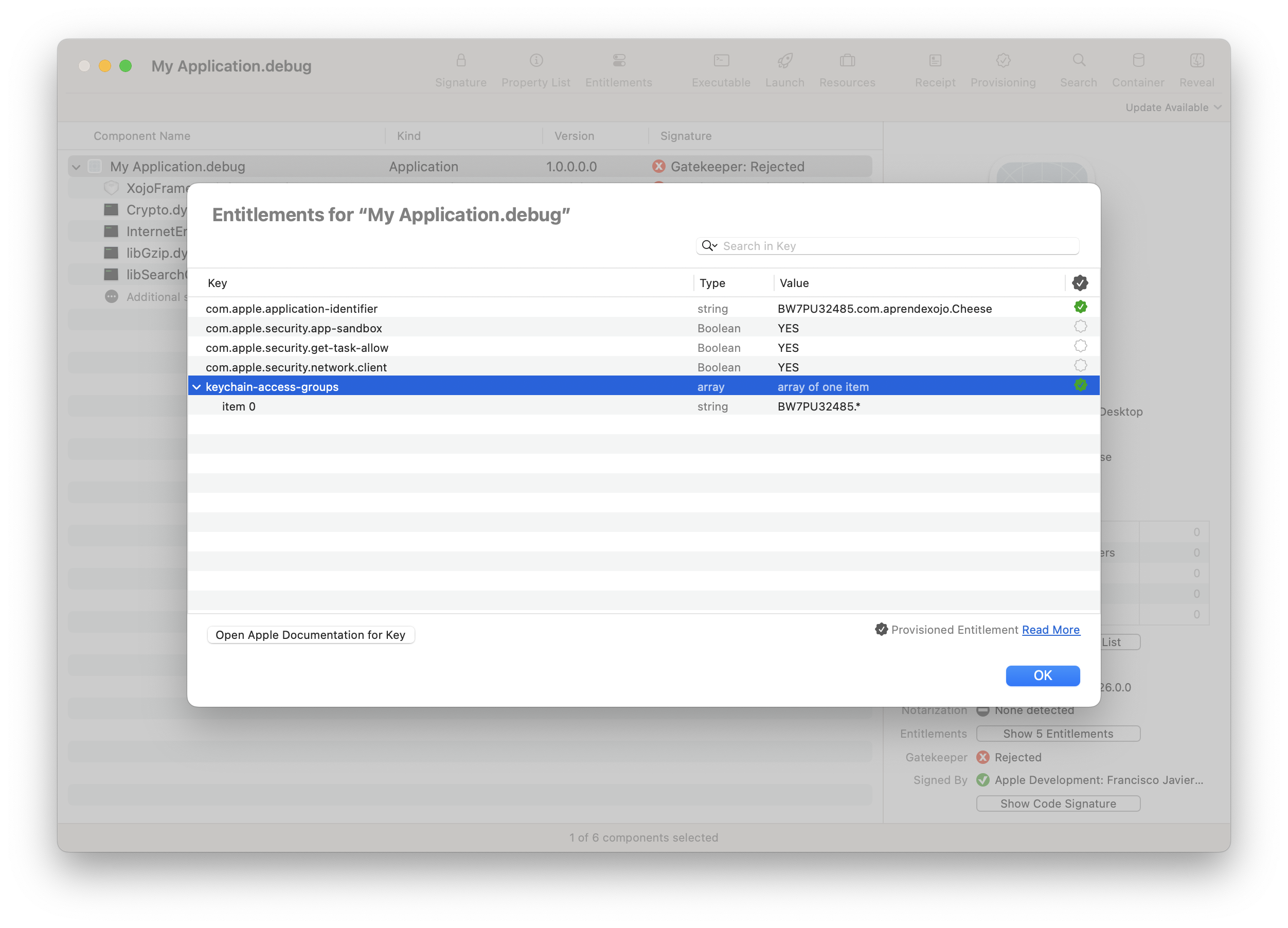
In addition, especially for more advanced macOS apps that need to use entitlements and provisioning profiles, these will also be applied when the app is Run / Debug from the Xojo IDE. In this case, make sure to select the Build For > Development Certificate required for signing the app.
Debugging with Entitlements in Action
In order to show how convenient it is to debug macOS apps with entitlements and provisioning profiles applied to them, let’s make use of one of the small improvements also introduced in Xojo 2026r2: synced KeyChain Passwords. For this to work you will need to have iCloud > Passwords enabled under System Settings > Apple Account > iCloud.
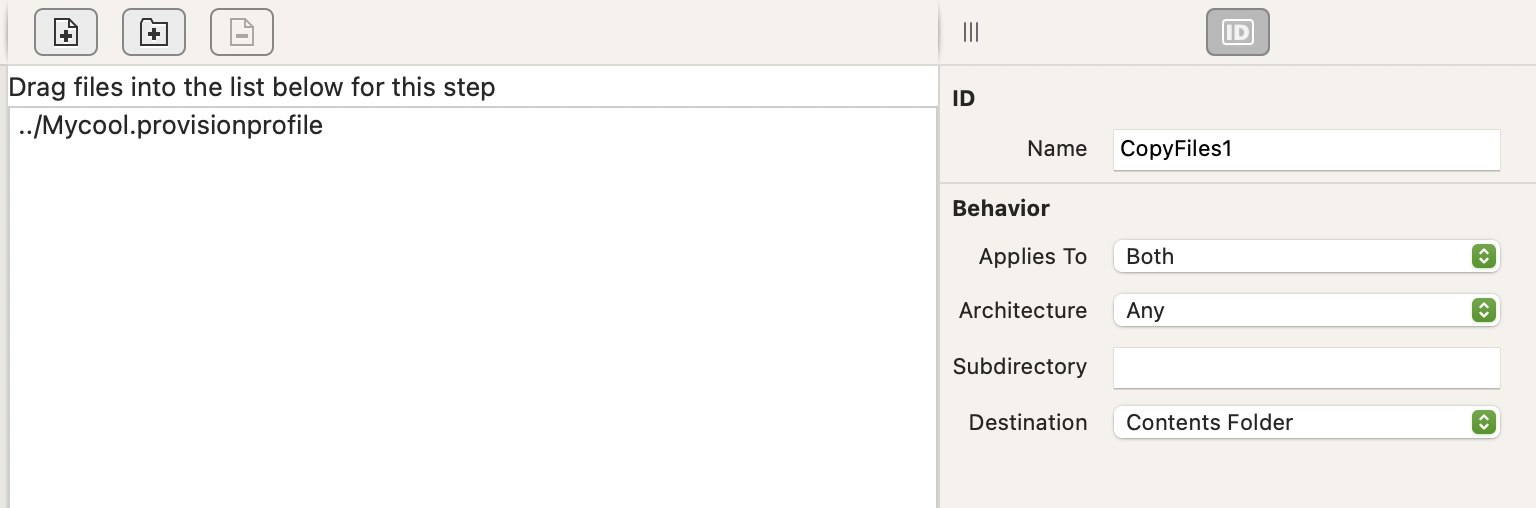
The first step is to create the development provisioning profile from Apple’s developer portal (specifically for keychain-access-groups), download it and add it to the project using a Copy Build step, making sure that Contents Folder is selected as the destination for the copied file.
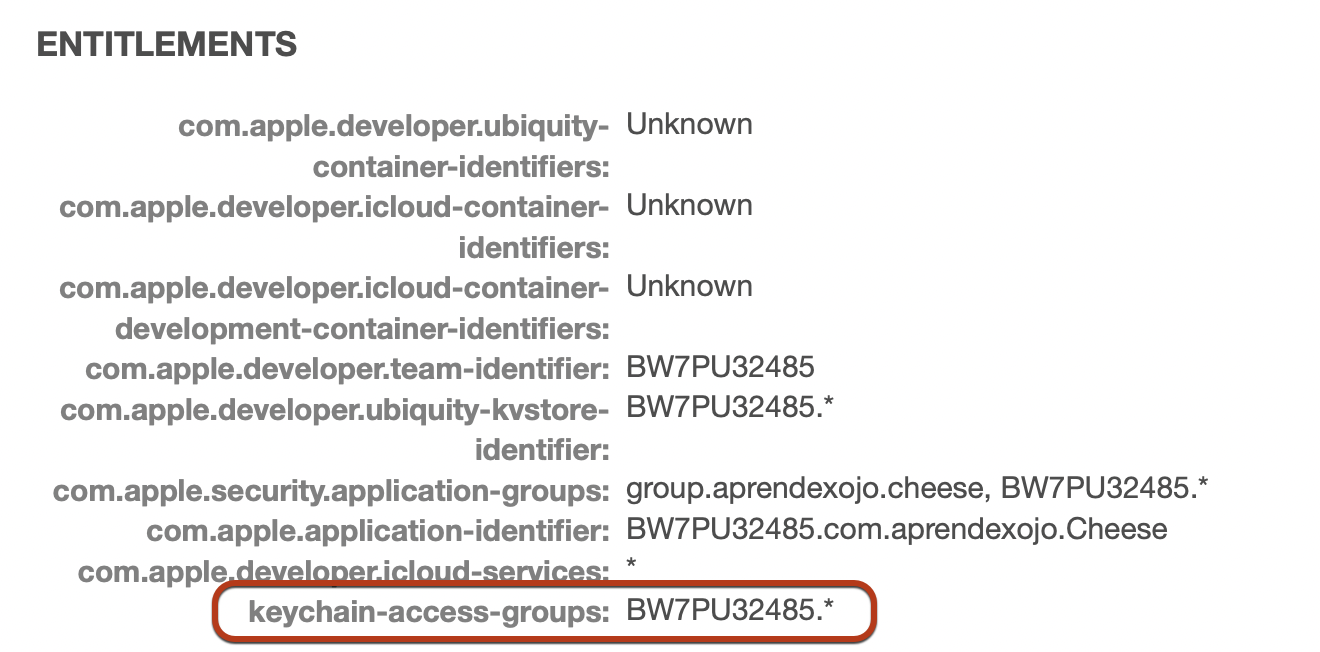
Then, we need to create the associated entitlements file using your favourite text editor for that. Make sure it looks like this for the purpose of this example (you will need to change all the references to the app bundle ID and the Developer ID so these match yours):
<?xml version="1.0" encoding="UTF-8"?>
<!DOCTYPE plist PUBLIC "-//Apple//DTD PLIST 1.0//EN" "http://www.apple.com/DTDs/PropertyList-1.0.dtd">
<plist version="1.0">
<dict>
	<key>keychain-access-groups</key>
	<array>
		<string>BW7PU32485.*</string>
	</array>
	<key>com.apple.application-identifier</key>
	<string>BW7PU32485.com.aprendexojo.Cheese</string>
</dict>
</plist>
Once created and saved using the “.entitlements” extension, add it to Build Settings > macOS > Sign > User Entitlements.
Creating a Synced Password
After adding a button to the default project Window, implement the Pressed event handler and add this fragment of code into the associated Code Editor:
Var newItem As KeychainItem

If System.KeychainCount > 0 Then

  newItem = New KeychainItem
  newItem.Label = "This is a Label"
  newItem.Description = "This is a description"
  newItem.ServiceName = "MyApplication"
  newItem.AccountName = "XojoTest"
  newItem.Comment = "This is a comment"

  ' Assign a password to the item
  ' Passing True as the third parameter means we want this one
  ' to be created / saved under the iCloud keychain,
  ' so it will be automatically synced with other Macs using
  ' the same iCloud user account.

  System.Keychain.AddPassword(newItem, "SecretPassword", true)
Else
  System.Beep
  MessageBox("You don't have a key chain.")
End If

Exception e As KeychainException
  MessageBox("Keychain error: " + e.Message)
Run the app from the IDE (you can enable both sandboxing and hardened runtime too if you wish), click the button and it will behave the same way it will when deployed. If you open Keychain Access app, select the iCloud entry in the Keychain window sidebar, and select then the Passwords option you will see the new added password from the debugged app.
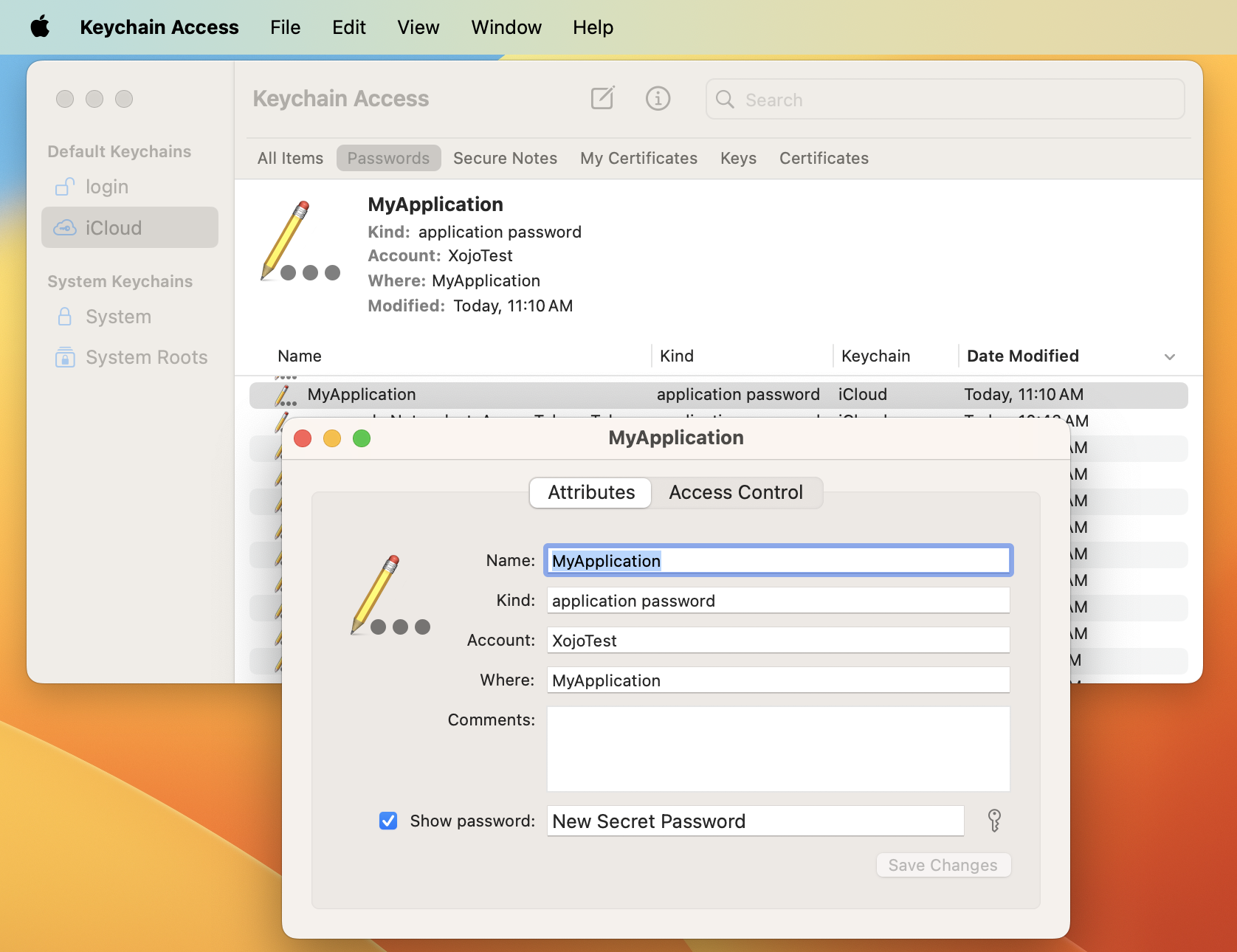
Obviously, if you have more than a Mac using the same user iCloud account, you wil be able to see how that password will be synced and added to its Keychain too after a few seconds.
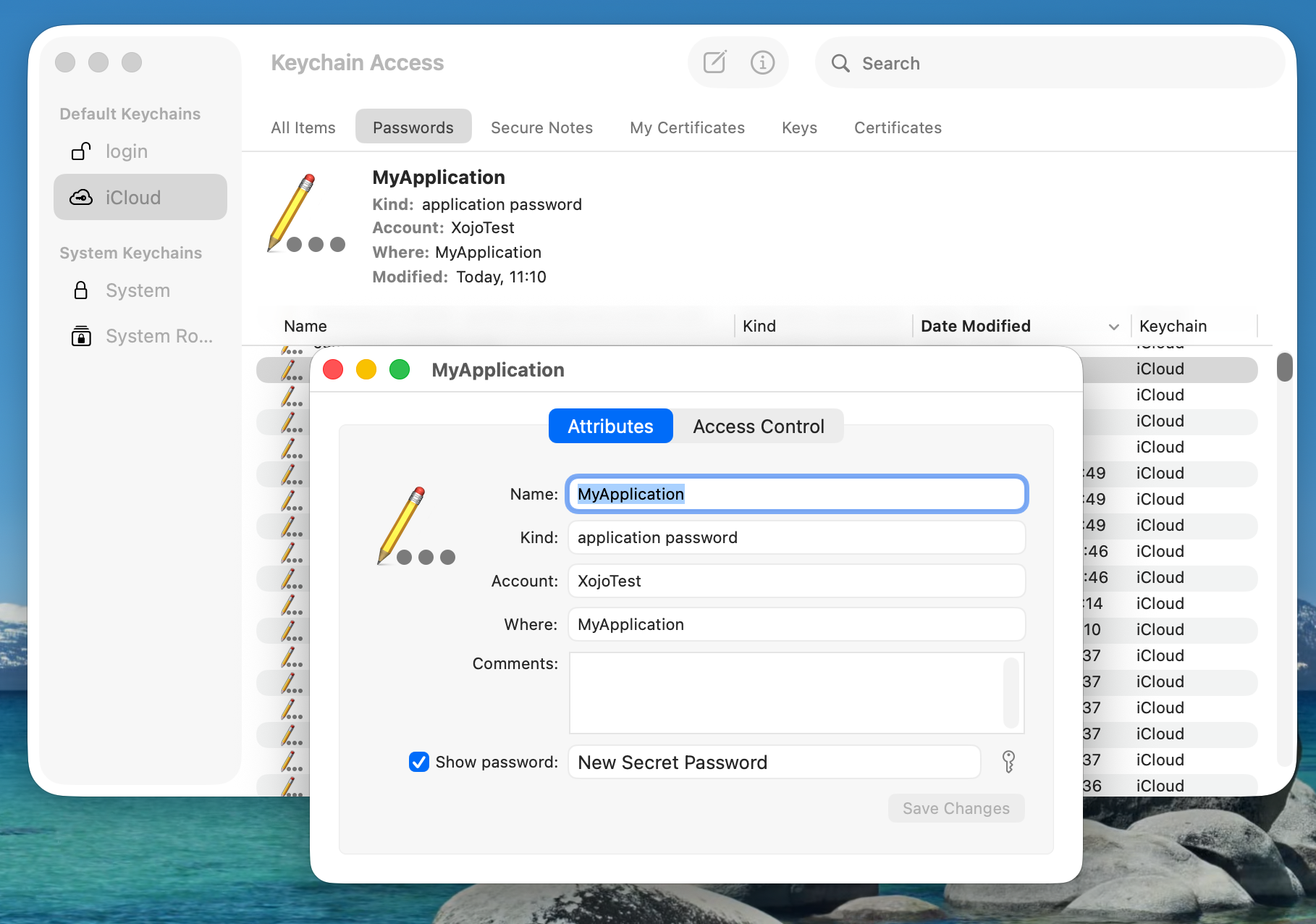
All in all, this means two things:
- macOS debugged apps exhibit the same behavior expected when these are deployed, which means that you will be able to debug them in more real conditions.
- The new ability to create synced passwords is quite convenient for those macOS apps making use of these, so your users won’t be required to create them again on each of their Macs or create different ones on each Mac they own.
In Summary
As we saw, setting sandboxing, hardened runtime, using entitlements and even provisioning profiles in you macOS apps during the debugging process now avoids conditional compilation branches, and provides a closer experience to the final (distributed) app, and even makes it easier to detect bugs in the code.
Javier Menendez is an engineer at Xojo and has been using Xojo since 1998. He lives in Castellón, Spain and hosts regular Xojo hangouts en español. Ask Javier questions on Twitter at @XojoES or on the Xojo Forum.