
DBKit v2 eliminates virtually all the code required to use DBKit. Open the database. Run the query. Copy values from the row into the controls. Copy them back when the user edits. Handle the errors. Repeat on every window or webpage; and none of it requires any code with DBKit.
DBKit is a set of data-aware controls for Xojo: drop a DBKit.TextField on a layout, point it at a database, table, and column, and it loads, displays, and saves the value by itself. The query code, the glue code, the error handling: gone.
Version 1 proved the idea. It covered the basics and saved real time. But it still left work on your plate: filling listboxes, keeping controls in sync, writing the code that moves data back and forth.
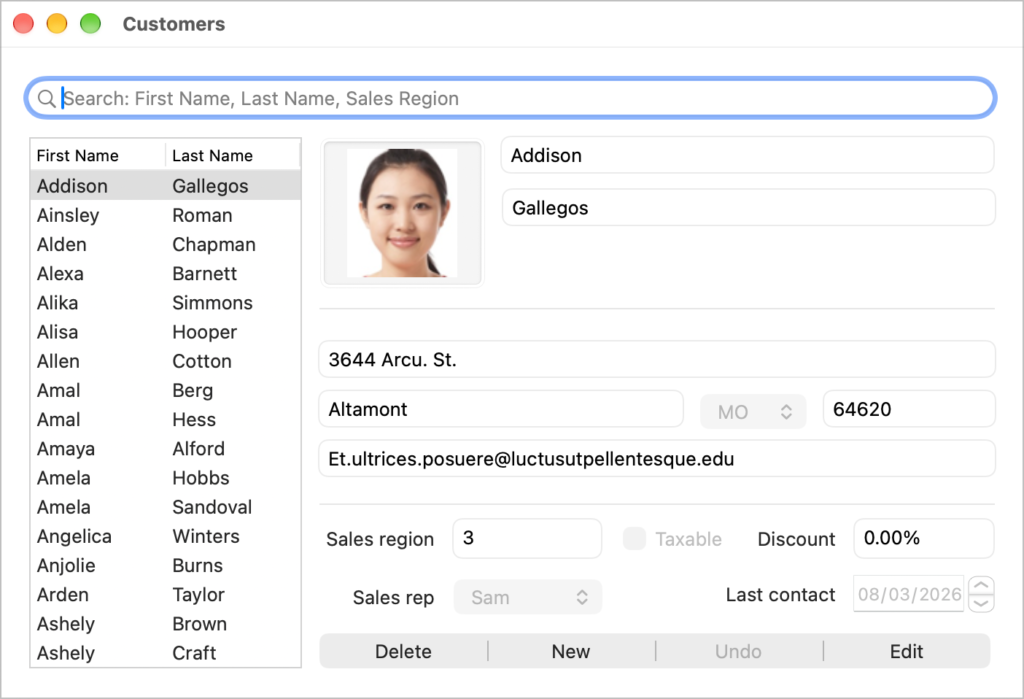
Version 2 finishes the job. The controls are now fully self-sufficient. In most cases there is no database code left to write at all. The CustomersWindow from the DBKit Desktop Example project has no code at all. The same is true of the CustomersPage of the DBKit Web Example.
DBKit.Table. This is an all-new control built from the ground up: it fetches only the rows it needs to display, so whether you have hundreds of rows or millions no longer matters. Rows load fast. Table replaces the old ListBox-based approach entirely, on Desktop and Web alike.
What is new
DBKit.Row. This is the heart of v2. A Row is the object every row event hands you, and it is how you work with data everywhere in DBKit. Read and write column values by name: row.Column("quantity"). Values from related tables use qualified names: row.Column("products.price"). Columns that do not exist in the database, like calculated columns, work exactly the same way: assign them and the table picks them up. One object, one API, everywhere.
Row events. v2 introduces a full set of row events covering the row’s whole lifecycle: RowDisplayed, RowLoaded, RowChanged, RowEditing, RowSaving, RowSaved, RowCreated, RowDeleted, RowUndone, and RowNotSelected. RowDisplayed fires for each row as it appears, which is where per-row customization lives, including calculated columns:
Sub RowDisplayed(row As DBKit.Row) Handles RowDisplayed
  row.Column("linetotal") = row.Column("quantity") * row.Column("products.price")
End Sub
Calculated columns. Some values do not live in the database. A line total is quantity times price. Define the column, compute it in RowDisplayed, and the table treats it like any other column, including in totals and inline editing.
Related rows, automatically. Tell DBKit about your table relationships and it loads related rows on its own. You just set the TableRelationships property in the Inspector, one relationship per line:
invoices.customerid=customers.idDBKit.Table displays related columns with no extra work, and on DBKit layouts, controls bound to related-table columns load automatically too. That products.price in the example above comes from the related products table. No JOINs in your code.
Inline editing. Mark columns editable and users can edit cells right in the table. Edits flow through the same row events, so calculated columns like that line total stay correct automatically.
A much more powerful SearchField. Drop a DBKit.SearchField on a layout and users can search as they type, with no code at all. It automatically searches every displayed column whose data type matches what they enter: text matches from the beginning of the value, quotes force an exact match, > and < compare numbers, two periods define a range, dates work in local or ISO format, and typing a column name first searches just that column.
Database connections without the code. DBKit works directly with DatabaseConnection objects. Configure the connection in the IDE for SQLite, MySQL, PostgreSQL, or ODBC, hand it to DBKit, and there is no connection code to write.
DBKit layouts. DBKit.Window, DBKit.Page, and DBKit.Container are layouts with a simple idea: bind the layout to a table, and every DBKit control on it shows the current row. The layout handles loading the row, saving edits, adding and deleting rows, undo, navigating between rows, and loading related rows. You arrange controls; DBKit does the rest.
Nearly identical on Desktop and Web. Everything above works the same in desktop and web apps: the same controls, the same events, the same Row object. Learn it once, use it everywhere.
If you are coming from v1
The conversion guide is short, and most of it is code to delete. That is the point.
Try it
DBKit v2 is available now. The DBKit Desktop Example and DBKit Web Example projects show it all working together: customers, invoices, and invoice items, with barely any database code in sight. The customers page in the web example, which displays and edits complete customer records, contains no code at all. Not one line. And that is just the start: v2 has a lot more new features, so check out the DBKit overview and the Classes reference.
If you’re new to DBKit, try out the DBKit tutorials for desktop and web.
Geoff Perlman is the Founder and CEO of Xojo. When he’s not leading the Xojo team he can be found playing drums in Austin, Texas and spending time with his family.