
In this post, I’ll show you how to anchor a popover to a specific DesktopTable cell using CellBoundsAt so you can display full cell text (even when the cell can’t fit it) with correct positioning across macOS and Windows.
Popovers anchor to a control, not a location, which has been somewhat tricky to do in the past. DesktopTable has a CellBoundsAt method which returns a Rect containing the selected cell’s geometry and position relative to the table control’s location on its parent. This allows us to anchor the popover container to an individual cell.
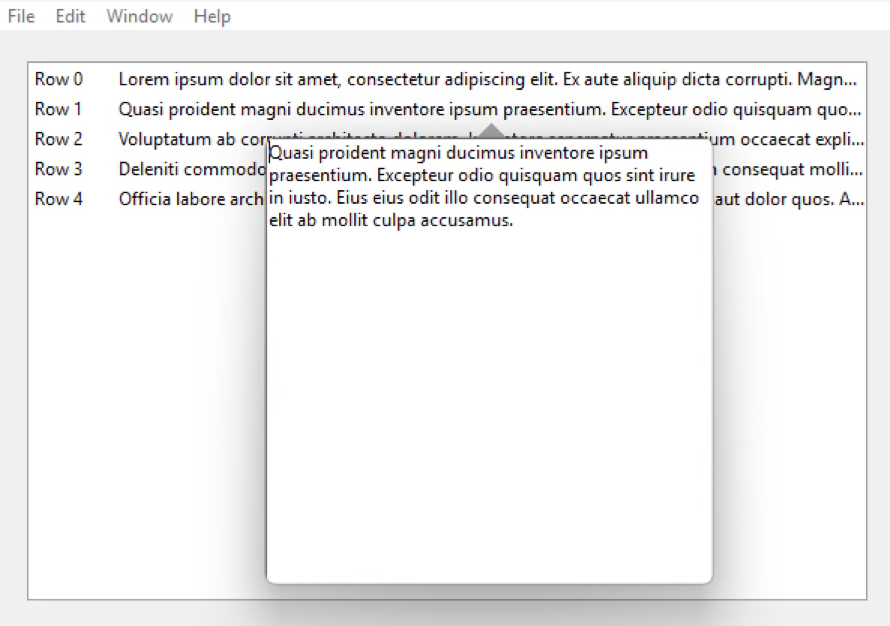
This is useful when you need to show the full contents of a cell whose displayed area can’t fit the underlying data.
In this example, the popover container is intentionally simple – it is a TextArea sized to fill the container. The container is named PopOverContainer. The Window includes a property named AnchorControl As DesktopRectangle that we’ll use as the popover’s anchor.
In the Window Opening event, we initialize the anchor rectangle:
Sub Opening() Handles Opening
  AnchorControl = New DesktopRectangle
  Window1.AddControl(AnchorControl)
  AnchorControl.BorderThickness = 0.0
  AnchorControl.FillColor = &c000000FF ' Transparent on MacOS, Window background color on Windows

End Sub
This initializes the rectangle that we will anchor the popover to.
Lastly the CellPressed Event Hanlder:
Function CellPressed(row As Integer, column As Integer, x As Integer, y As Integer) Handles CellPressed as Boolean
  #Pragma Unused x
  #Pragma Unused y
  If column <> 1 Then ' We only want the popover to show on Column 1
    Return False
  End If

  // Move the Anchor control to the selected cell position.
  AnchorControl.Left = me.CellBoundsAt(row, column).Left + me.Left
  AnchorControl.Top = me.CellBoundsAt(row, column).Top + me.Top + me.CellBoundsAt(row, column).Height ' I want the popover to anchor to the bottom of the control
  AnchorControl.Width = me.CellBoundsAt(row, column).Width
  AnchorControl.Height = If(TargetWindows, 0, 1) ' Windows can handle 0 height, MacOS doesn't

  // Now that we have an anchor point at the correct location we can popover

  Var poc As New PopOverContainer

  poc.TextArea1.Text = me.CellTextAt(row, column)

  poc.ShowPopover(AnchorControl, DesktopContainer.DisplaySides.Bottom)
  Return True
End Function
Cross-platform Adjustments
Some adjustments will need to be made for the different ways targets handle transparency. Windows doesn’t visually render transparent controls in the same way macOS does, and macOS may require the anchor control to occupy a space. By setting the anchor height appropriately, we can ensure the popover is positioned correctly on both platforms.
Wayne Golding has been a Xojo developer since 2005 and is a Xojo MVP. He operates the IT Company Axis Direct Ltd which primarily develops applications using Xojo that integrate with Xero www.xero.com. Wayne’s hobby is robotics where he uses Xojo to build applications for his Raspberry Pi, often implementing IoT for remote control.