
In Xojo 2026r3, the new Agentic Mode makes it easy to work with your favorite coding agent to help make apps.
For about a year now, Jade, Xojo’s built-in AI chat assistant, has been able to help you with coding questions, code reviews, bug fixes and focused code generation. Agentic Mode takes things to an entirely new level.
Coding agents are separate products that are able to do interactive code generation directly on project files. Popular coding agents include Claude Code and ChatGPT Codex, but there are many others. I’ve personally found that Claude Code works well from inside the Claude desktop app.
Although most of the AI companies let you use their chat products for free, you usually have to purchase a plan to get access to the coding agent. Of course, there are some free plans around and you could even install a local LLM and an open-source agent if you wanted. Since the coding agent works directly on the project files, any coding agent will work with Agentic Mode in Xojo.
What is Agentic Mode?
For Xojo, Agentic Mode is a setting in the File menu that provides some guidance to the coding agent and allows the agent to request to run Xojo projects and get back compilation errors. It also tells Xojo to regularly reload files in the project as they are changed.
To use Agentic Mode you first have to save the project to text format. After doing this, you can select File->Agentic Mode to turn it on. This displays the Messages panel so you can see information about project files that get reloaded.
You can now go to your coding agent and add the folder containing your text project as a work folder. After doing that you can type prompts to the coding agent and watch it do its thing. The agent will think, change files, request to run the project, review any compilation errors and generally just chug along until it has finished the task you gave it. While this is all happening, you’ll be able to watch project items change in Xojo and even see the debug app start and stop.
Each coding agent works similarly, but they have their differences as well. They are also all highly capable and will learn new features as they work through your project and your prompts.
Agentic Mode in Action
To show you how Agentic Mode works, we will do two quick examples.
This first example creates an empty project and asks the coding agent to create an app.
Start Xojo, from the Project Chooser select Desktop and give it the name StockTicker. Check the “for AI (Agentic Mode)” checkbox and click Create. You will be immediately prompted to choose a folder. Select a folder and Xojo will automatically create a new folder in that folder with the name StockTicker, save the project as text into the folder and turn on Agentic Mode.
You can now open your coding agent (I’m using Claude Code for this example) and start a new session. Add the StockTicker folder as a working directory and select your preferred model (I used Sonnet 5.5/Medium). Now enter the prompt to create the app. I used this:
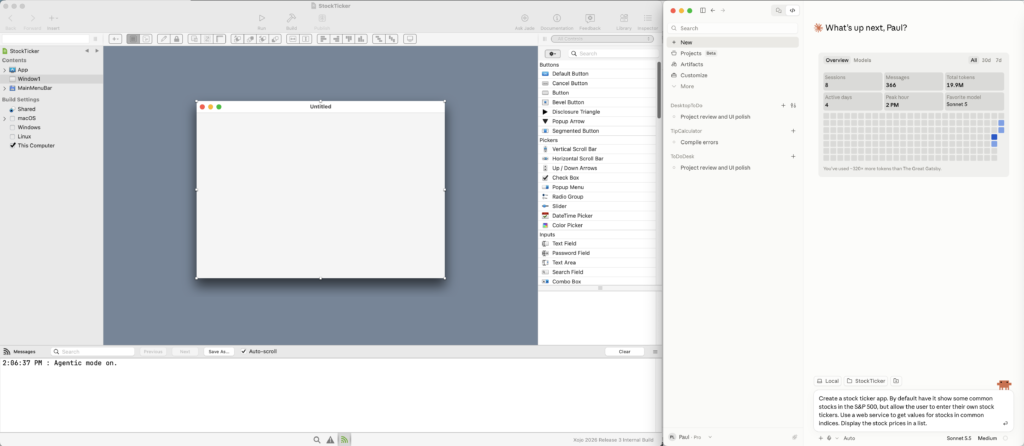
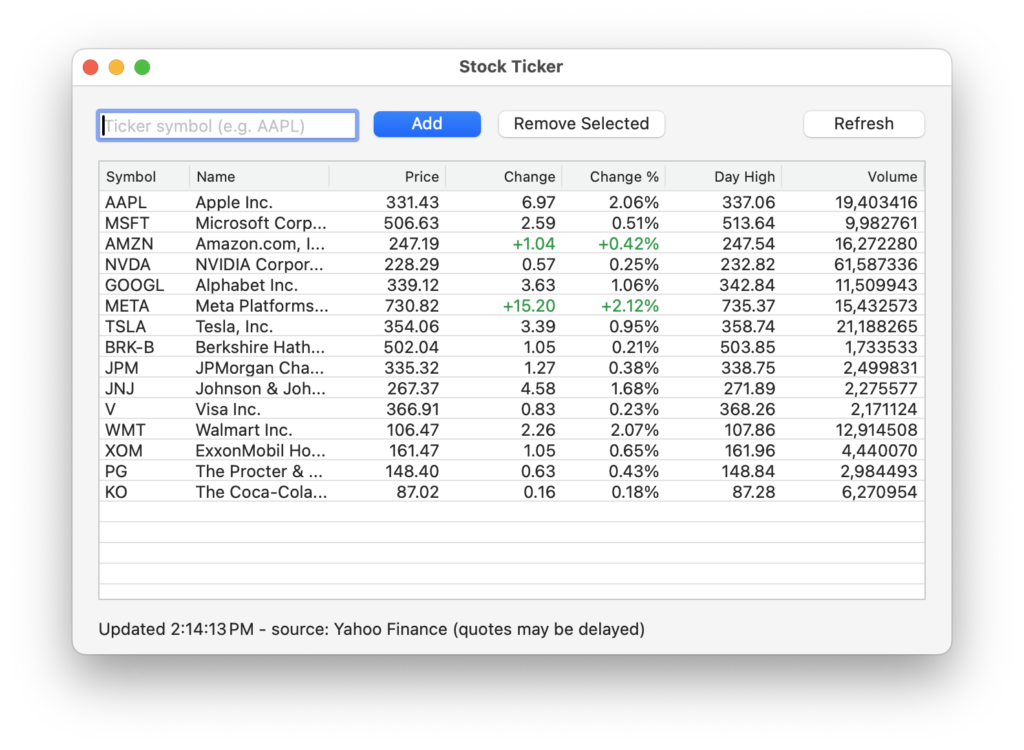
Create a stock ticker app. By default have it show some common stocks in the S&P 500, but allow the user to enter their own stock tickers. Use a web service to get values for stocks in common indices. Display the stock prices in a list.
Here is my initial setup with Xojo and Claude Code both open:
Claude Code chugged for a couple minutes and when it was done it had created this app:
Here is a (sped-up) video of the overall process:
The next example modifies an existing project. In this case, we will use the ToDo project that is included as a Xojo example. Using the Project Chooser, open the Desktop ToDo example and save it as a text project to a folder called DesktopToDo. Turn on Agentic Mode (File->Agentic Mode).
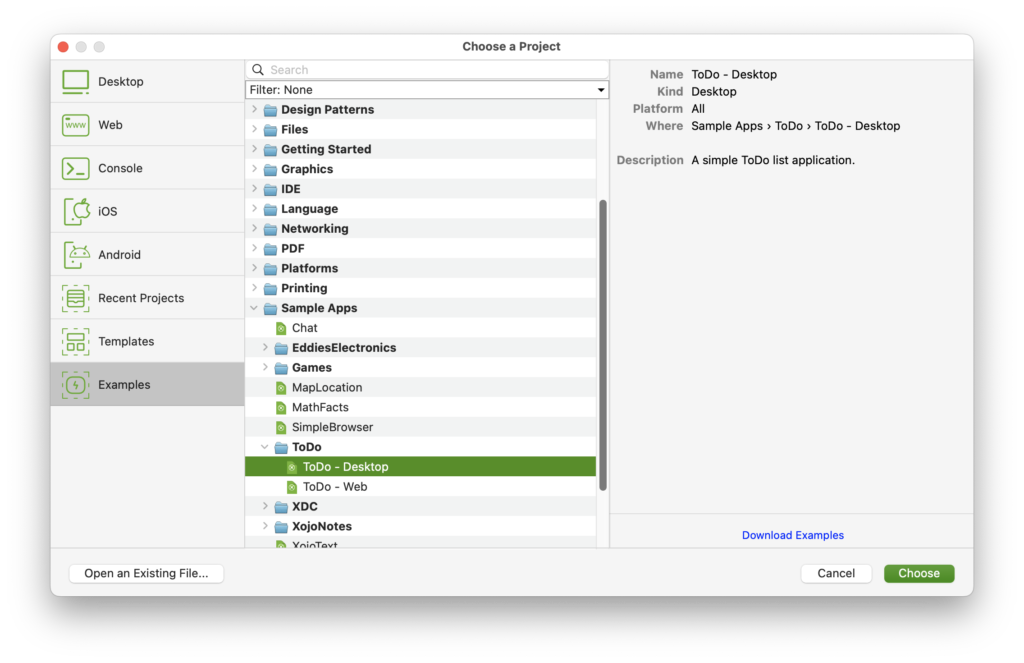
Open your coding agent, add the DesktopToDo folder and give it your prompt. I used this:
Please review and improve this project. Perhaps make the UI a little snazzier and clean up code as necessary.
The ToDo app UI went from looking like this:
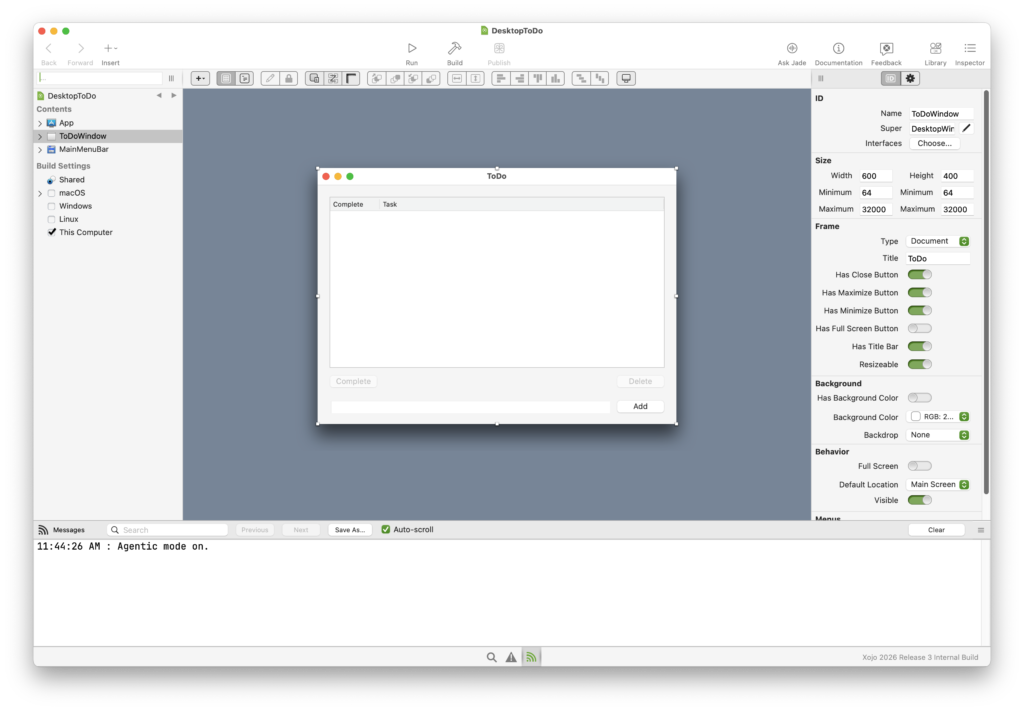
To this:
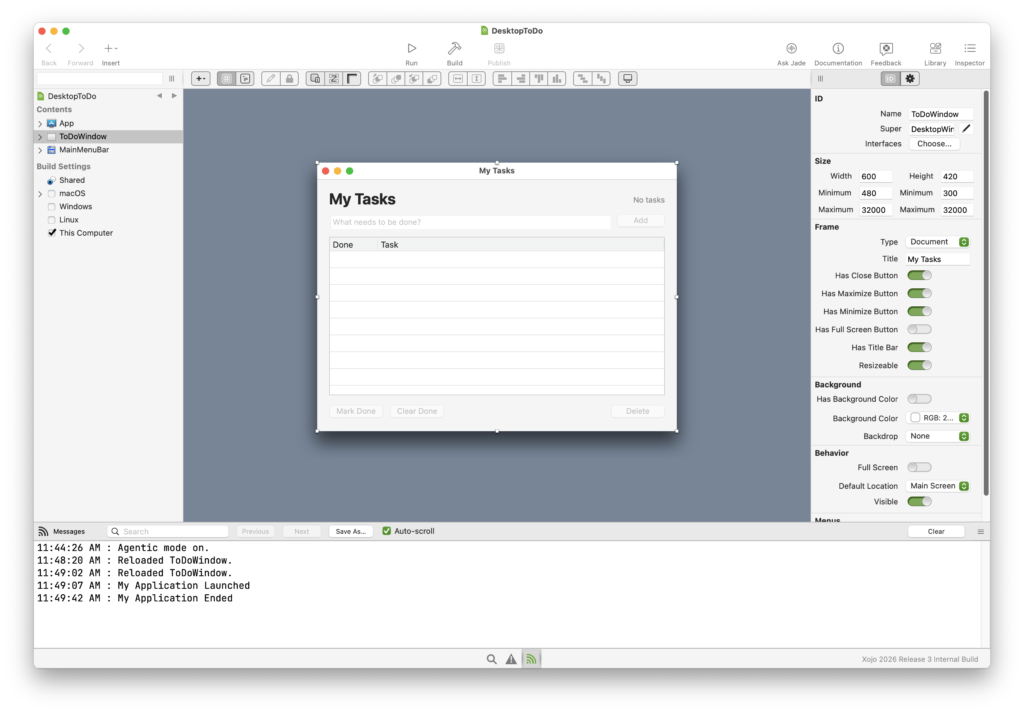
It took less than two minutes for Claude Code to make these changes, fixing some of its own compile errors along the way. There were also code changes, of course. It even offered to make additional changes, such as add the ability to save the ToDo items between app launches.
Here is a (sped up) video of Claude Code working on this with Xojo:
Keep in mind that because these AI systems are non-deterministic you will get wildly different results from the same prompt. For example, in different tests with this same example and prompt, I got a changed ToDo app UI that was more colorful and had automatic saving and loading.
Other Agentic Mode Notes
You can toggle Agentic Mode on or off via IDE scripting with this command:
DoCommand("ToggleAgenticMode")Many coding agents have their own built-in browser and can use that to run and test Xojo web apps.
You can use Xojo while a coding agent is changing things, but keep in mind that changes you make might get overwritten by agent changes.
When Agentic Mode is turned on, Xojo adds an empty AGENTS.md file to the project folder that imports the XOJO-CODING.md guidelines file. You can add your own tips and suggestions to AGENTS.md (and even have the agent do it itself), but keep the link to XOJO-CODING.md intact. If you already have an AGENTs.md file in that folder that you added then Xojo won’t overwrite it, so be sure to tell it to reference XOJO-CODING.md with something like this:
<xojo-coding>
Before answering ANY message (including questions, suggestions, and planning) read the @XOJO-CODING.md file, right now.
Begin your first reply with one line: "XOJO-CODING.md loaded", then answer normally.
</xojo-coding>
The Agentic Mode setting is saved with your Xojo text project file. This allows you to have projects that automatically activate Agentic Mode when they are opened.
I hope you find Agentic Mode helpful for your workflow! Read more in the Xojo Docs or get started with the AI QuickStart.

Paul learned to program in BASIC at age 13 and has programmed in more languages than he remembers, with Xojo being an obvious favorite. When not working on Xojo, you can find him talking about retrocomputing at Goto 10 and on Mastodon @lefebvre@hachyderm.io.