
Agentic Mode is one of the big additions in 2026r3. It lets Claude Code and other coding agents drive the Xojo IDE. Other posts in this series cover things like the IDE picking up file changes from disk. In this one, I want to show you why I think Agentic Mode is a great fit for Xojo Web projects.
While I’ve been using Claude Code and I refer to it through this blog post, any other coding agent that knows how to read the AGENTS.md file should work just fine as well. We’d love to hear your AI stories and we even have a dedicated forum category for AI related posts.
I’ve been testing Agentic Mode for a while, and one session stands out. I gave Claude Code an intentionally vague prompt, something like “make something wow, the more wow, the better”. This is what Opus 5.5 came with after 11 minutes:
Far from perfect, but still very cool!
It’s a mission control panel showing a 3D globe with the earthquakes of the last seven days from the USGS feed, the live position and trajectory of the International Space Station, and the day/night line. It also has a command palette. And it’s multiplayer: every web session joins as a crew member, and you can see each other appear and move around in real time. Click a crew member and you jump to their view.
Let me show you how we got there.
The Setup
There isn’t much to it, honestly. I created a new Xojo Web project, saved it in the plain text file format, and enabled Agentic Mode.
When you turn Agentic Mode on, the IDE creates an AGENTS.md file in the project folder if there isn’t one already. That file points to XOJO-CODING.md, which explains to the agent how to work with the IDE. It also links to example projects for each Xojo target, including Web.
There’s no MCP server involved, no plugin to install. The whole protocol is a couple of text files. When the agent wants to build and run the project, it touches a file called XojoRunProject.txt, and the IDE does the rest. If something doesn’t compile, the IDE writes the errors to XojoCompileErrors.txt so the agent can read them.
Claude Code read the instructions and followed them perfectly from the very first prompt.
A JavaScript app in a Xojo shell? No, thanks
The first version was impressive, but there was a catch. Claude Code built almost everything in JavaScript. It worked, but what I had was a JavaScript web app inside a Xojo Web shell, and that’s not really the point.
So I asked it to refine the project, using WebContainers and regular Xojo Web controls as much as possible. This is how the project looks in the IDE afterwards:
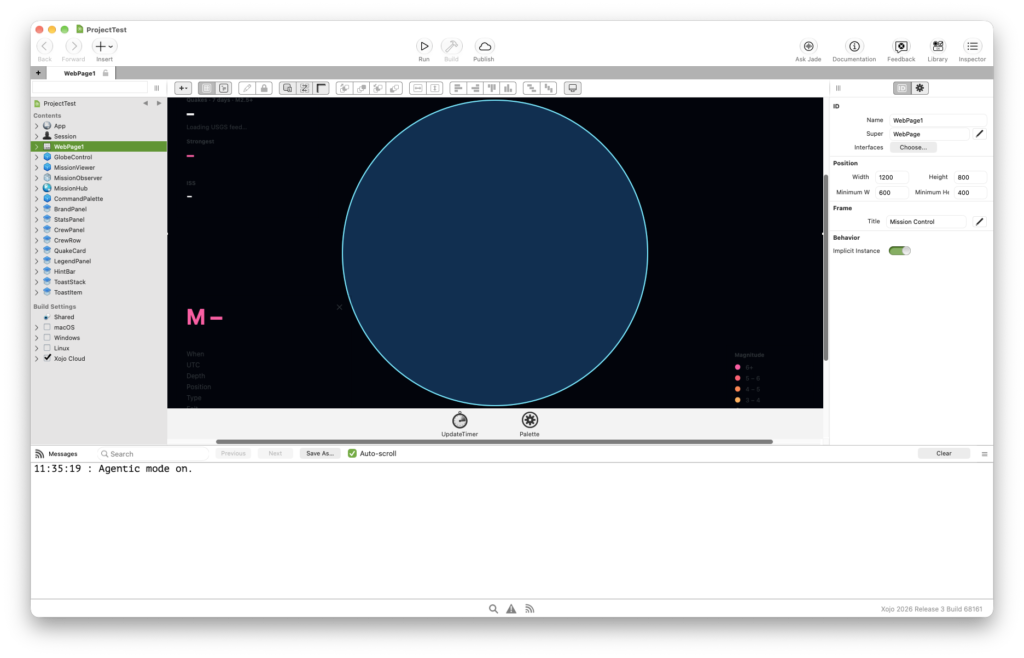
The page is now built from reusable pieces you’d recognize from any Xojo project: a StatsPanel, a CrewPanel with a CrewRow for each crew member, QuakeCard, LegendPanel, HintBar, a ToastStack for notifications, and so on.
JavaScript didn’t disappear completely, and that’s fine. It stayed where it really makes sense. GlobeControl is a WebSDKUIControl wrapping the Globe.GL library, which handles the 3D globe. Claude Code also wrote a few other Web SDK controls for things that really should happen in the browser, like opening the command palette when you press Cmd+K. You wouldn’t want a round trip to the server just to show a palette.
If you open the project, you’ll be able to follow it, and change it, like any other Xojo Web app.
This is my main tip if you try this yourself: tell the agent explicitly that you want a maintainable Xojo app. Otherwise, it will reach for whatever it knows best in order to please you.
Compile, Fix, Repeat
Every now and then, Claude Code wrote something that didn’t compile. A syntax error here, a wrong type there. The good news is that it saw the error in XojoCompileErrors.txt right away, fixed it and built the project again. I didn’t have to jump in a single time.
If you’ve ever copied and pasted code from a chat window into the IDE, then copied the compile error back into the chat, you know how much friction this removes.
Testing in a real browser
This is where it gets interesting for web projects. Code that compiles isn’t necessarily code that works, and in a web app, the only way to know for sure is to open it in a browser.
With the Claude in Chrome extension, Claude Code can do exactly that. You just need Google Chrome open, with the extension installed and logged in. From there, the agent runs the app, opens it in Chrome, clicks around and tests the project end to end.
When something looks a bit off at runtime, it takes a screenshot of the browser, tweaks the project, runs it again, and keeps looping until it looks right. Since a multiplayer feature needs more than one user, it opened several tabs to check that the crew members showed up for each other, and closed them once it didn’t need them anymore. And if the Chrome extension isn’t available for whatever reason (like using other coding agents), it can fall back to Puppeteer and drive a browser on its own.
In practice, this means I could describe a feature, go outside and have a coffee, and come back to find it implemented, tested and polished.
If you’re using other targets, feel free to ask your coding agent to embed an MCP server and use it to test the app. It will find its way to test it, no matter what. It will ask you to do a final human review on specific new features, but overall, the agent will be on autopilot most of the time.
A few rough edges
This is a promising setup, but it isn’t perfect yet.
If two or more coding agents try to compile different apps at the same time (and I mean the very same second), the IDE may tell you the compiler is busy, or that it couldn’t find the debug app. If you are not in front of your computer, you might find the session stuck, waiting for some human help.
The limitations I’ve found so far were easy to work around, by explaining to Claude Code what to do when it happens. More on that in a moment.
Teaching your agent new tricks
XOJO-CODING.md will keep improving, and we’ll keep updating the example projects to give coding agents more context. Still, sooner or later you’ll find something the agent doesn’t know how to do.
In my case, Claude Code didn’t know how to encode constants, or how to use folders. It was dropping every single class into the root of the project. It worked, but imagine finding your way around a big project like that.
If your project is under Git, this is really easy to fix. Tell the agent you’re about to create some nested folders, or a constant with special characters. It will take a look at the repository and ask you to make the change in the IDE and save the project. Once you’ve done it, tell Claude Code, and it will look at the differences to see how the IDE wrote those files. From there, you can let it refactor the project and move everything into folders.
Then comes the important part: ask the agent to write down what it learned in AGENTS.md. Every new session reads that file, so the next one will already know how the IDE creates project files, and how you like to work. This is also where it added the note about the busy compiler.
If you’re working on an existing project, it gets even easier. You won’t need to show the agent how to use folders if your project already uses them, because it will follow what’s there. The more you use it, the better it gets. And the bigger the project, the easier it is for the agent to add new features in the same way you’re already working.
Try it yourself!
You can download the Mission Control project here:
Open it with 2026r3, run it in a couple of browser windows, and watch your crew show up.
Working on Several Features at Once with Git Worktrees
Once you get used to delegating features, you’ll start wondering why you have to wait for one to finish before starting the next. This is where Git worktrees come in.
A worktree lets you check out several branches of the same repository at once, each one in its own folder. Since every folder has its own copy of the project file, the Xojo IDE just sees them as different projects and opens each one separately. You can have one agent adding a new panel in one worktree, while another one fixes a bug in a second worktree, without stepping on each other’s toes.
When a feature is ready, review the changes and merge the branch, just like you would with work coming from any other developer on your team. Or even better, ask the agent to do the merge.
A few things to keep in mind. First, each web app needs its own port. If two worktrees try to run their debug apps on the same port, only the first one will start. Ask each agent to use a different debug port in its worktree, and they’ll be able to run side by side.
Second, commit your AGENTS.md file. That way, every worktree starts with everything your agents have learned so far, and a finding from one worktree can be merged back for the rest. Just don’t write a specific port number there, or every worktree will inherit the same one. Tell each agent which port to use when you start the session instead.
And third, remember the rough edge I mentioned earlier: if two agents happen to compile at the very same second, the IDE may report the compiler as busy. That’s exactly the kind of note worth adding to AGENTS.md, so your agents know to wait a moment and try again.
Wrapping up
I didn’t expect this to work as well as it did. The agent writes the code, the IDE compiles it, Chrome shows the result, and the loop keeps going until the app works. Your job moves from typing code to deciding what to build, and reviewing what comes back.
Learn more about using Agentic Mode in the Docs and in the AI QuickStart. I’d love to see what you build with Agentic Mode. Share some screenshots or recordings in a new forum thread, or send me a private message if you prefer.
Happy coding!
Ricardo has always been curious about how things work. Growing up surrounded by computers he became interested in web technologies in the dial-up connections era. Xojo has been his secret weapon and language of preference since 2018. When he’s not online, chances are he will be scuba diving … or crocheting amigurumis. Find Ricardo on Twitter @piradoiv.