
Xojo 2026r3 introduces a bunch of new features and improvements to make your iOS apps shine even more. With updates to the recently added MobileMenuItem and MobilePopupMenu classes, the MobileScreen, and the addition of an independent MobileSearch control, you’ll be able to do more. Xojo 2026r3 also adds the ability to open documents outside the app sandbox, print most common file formats using compatible AirPrint printers, view, edit and save the most common file types (including Microsoft Office Word and Excel), and support Dynamic Type on MobileLabel, MobileTextField and MobileTextArea. Continue reading to find out how you can implement these!
MobileDocumentPicker: Beyond the Sandbox
Starting with Xojo 2026r3, your iOS apps are able to open and even save files outside the usual folders related to the app sandbox. Using the new MobileDocumentPicker class, it is now possible to open any available PDF document saved on the device (or even in iCloud) and display it using the MobilePDFViewer.
This also applies when saving files. For example, any PDF documents created using the PDFDocument class, any image, text or any other kind of document file you create in your iOS app can be saved for public availability outside of the sandboxed folders. Once saved, these documents can be opened by other apps installed on the same device, or even automatically synced via iCloud.
It is not necessary to enable any capability in your iOS project, or add entitlements or additional entries to the app’s .plist file, just use MobileDocumentPicker.Open and MobileDocumentPicker.Save methods.
Printing Arrives to iOS
In addition to the MobileDocumentPicker, we also added the MobilePrinterPicker starting with Xojo 2026r3. This control allows your app to print any of the most common file formats (for example PDF, images, text, html, .Pages and .Numbers) to any printer available on the network that is compatible with the AirPrint technology.
You only need to call the MobilePrinterPicker.Print method, passing along the FolderItem whose content will be printed. The iOS modal dialog will offer options to select the target printer and all of the print settings for that printer, from the page size, to the range of pages to print, enabling duplex printing, color printing, etc.
Viewing Documents
Now that we are able to access documents beyond the app sandbox and print them, it would be great to have the ability to display the most common document formats in your iOS apps – plus allow users to edit and save their changes! That is exactly what the new MobileDocumentViewer does.
The MobileDocumentViewer allows your iOS app to view the following file formats:
- iWork documents.
- Microsoft Office documents.
- Rich text format, or RTF, documents.
- PDF files.
- Images.
- Text files with a uniform type identifier that conforms to the public.text type.
- Comma-separated values, or CSV, files.
- Video files.
And edit (and save) the changes made by the user in the following ones:
- PDF Files (signing, drawing, rotating pages, adding or deleting pages, adding pages from scan, etc.)
- Images (drawing, cropping, etc.)
- Video files (trimming)
You only need to drag the MobileDocumentViewer from the Library into the Tray area of the Screen where it is intended to be used. Calling the Show method on the instance will open the modal view to let users view and navigate among the received array of FolderItem instances of the documents to be shown.
To react to the changes made by the user in the compatible document file formats, there is the DocumentSaved event handler, which (once implemented) receives the FolderItem of the document that has been modified.
MobileSearchField
Available on Desktop and Web targets, the MobileSearchField has been added to the Mobile target.
In previous releases, it was possible to do a search or filter data in iOS apps using the iOSMobileTable control. However, there are situations where you may need more than one search control on the same iOS screen; and in some cases, you don’t need the search to display matching data in an iOSMobileTable.
For those scenarios, you can now add and use as many MobileSearchField controls as your app requires.
When using this control, you can not only set the default Hint or Text property values, but also enable a scope bar and set the title names for each scope. Think of the scope bar as a way to let users (and your app) filter results not only by the typed text, but also by a specific category, for example.
The scope bar can be enabled or disabled at runtime via code, as well as each title name displayed by the scope bar.
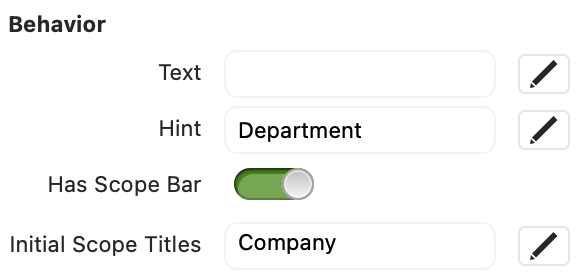
The main event handlers that you will probably want to implement for this control are:
- SearchPressed(). Fires when the user taps on the “Done” button on the device soft keyboard
- ScopeChanged(index As Integer). Fires when the user changes the current scope in the scope bar (if enabled for the search field instance
- TextChanged(). Fires every time there is a change in the text field of the SearchField control
iOSMobileTable SearchField
We also improved how the already available search field for iOSMobileTable behaves, especially when the iOS app is run on iOS 26+.
- If the app uses a MobileTabBar or MobileToolbar, then the associated iOSMobileTable search field will move automatically to the navigation bar section.
- When the search field is in the navigation bar section, it will be collapsed by default (displaying only the loupe icon), so it doesn’t take up extra space on the app screen when the user isn’t searching. Tapping on the loupe icon will expand the search field for the table, letting the user type. As soon as the search field loses the focus, it will collapse again as the loupe icon.
MobileMenuItem and MobilePopupMenu Improvements
Both MobileMenuItem class and MobilePopupMenu were introduced in Xojo 2026r2. In 2026r3, they received a number of improvements.
MobileMenuItem
- Icon property. It is now possible to use Picture.SystemImage or a Picture directly to assign an icon to each item.
- Symbol property. You can now assign an SF Symbol name to this property and it will be used as the item’s image. You can also assign multiple symbol names separated by semicolons. The first one found will be the one used.
An advantage of using Symbol instead of Icon is that it will generate the assigned image at the expected size. - AllowMulticolorSymbol property. When this property is set to True, the assigned symbol will use the Multicolor rendering mode instead of Monochrome.
- Separator. It is now possible to add separators to a menu using the same syntax as on Desktop: New MobileMenuItem(“-“).
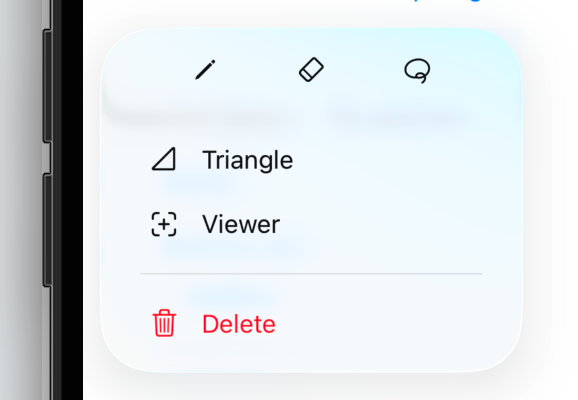
- IntegratedPalette display mode. Starting with Xojo 2026r3, we added the IntegratedPalette to MobileMenuItem.RenderingModes. When used as the display mode on a submenu, it will be integrated into the main menu it is attached to using an horizontal format. This allows creating the kind of menus commonly found in many iOS apps.
For example, the following code:
Var horizontalSubmenu As New MobileMenuItem("")
Var firstSubmenu As New MobileMenuItem("Pencil")
firstSubmenu.Tag = "Pencil"
firstSubmenu.Symbol = "pencil"

Var secondSubmenu As New MobileMenuItem("Eraser")
secondSubmenu.Symbol = "eraser"
secondSubmenu.Tag = "Eraser"

Var thirdSubmenu As New MobileMenuItem("Lasso")
thirdSubmenu.Symbol = "lasso"
thirdSubmenu.Tag = "Lasso"

horizontalSubmenu.AddMenu(firstSubmenu)
horizontalSubmenu.AddMenu(secondSubmenu)
horizontalSubmenu.AddMenu(thirdSubmenu)
horizontalSubmenu.DisplayMode = MobileMenuItem.DisplayModes.IntegratedPalette

Var mainMenu As New MobileMenuItem
mainMenu.AddMenu(horizontalSubmenu)

Var firstMain As New MobileMenuItem("Triangle")
firstMain.Symbol = "righttriangle"
firstMain.Tag = "Triangle"
Var secondmain As New MobileMenuItem("Viewer")
secondmain.Symbol = "plus.viewfinder"
secondmain.Tag = "Viewer"

mainMenu.AddMenu(firstMain)
mainMenu.AddMenu(secondmain)
mainMenu.AddMenu(New MobileMenuItem("-"))

Var thirdMain As New MobileMenuItem("Delete")
thirdMain.Symbol = "trash"
thirdMain.Tag = "Delete"
thirdMain.Destructive = True
mainMenu.AddMenu(thirdMain)

Me.Menu = mainMenu
Me.DisplayMenuAsAction = True
will create this menu when displayed:
MobilePopupMenu
On the MobilePopupMenu side, it received several fixes and improvements. Also, since MobileMenuItem can now handle separators, MobilePopupMenu now includes the AddSeparator method already available in the DesktopPopupMenu counterpart.
And because MobileMenuItem can now handle an Icon or Symbol, you can expect these to be supported when the items are displayed in the popup menu control.
Symbols Everywhere!
The Symbol and AllowMulticolorSymbol properties were not only added to MobileMenuItem, starting with Xojo 2026r3, you will be able to set them for the following controls and classes on iOS:
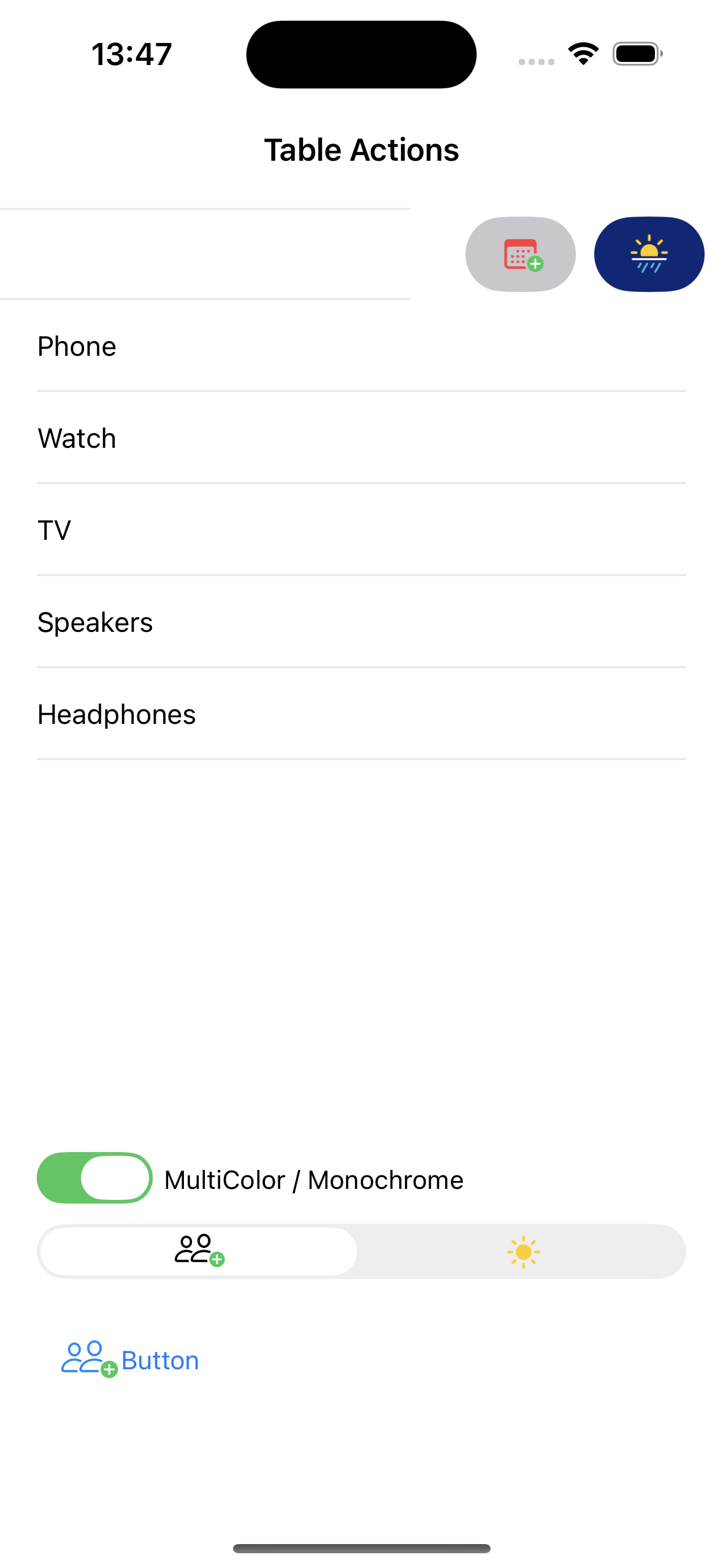
That means you can now create more visual, modern (and colorful) UI designs for your iOS apps.
MobileScreen
A couple of interesting improvements in this area:
- MobileScreen.Show(makeCurrent As Boolean) – When the passed parameter is set to True, the new screen will substitute the current one without changing or being added to the app navigation stack. If the value is set to False, it will behave like the regular Show method when no parent screen is provided.
- MobileScreen.ShowModal – We added a couple more parameters at the end of the method signature. The first one allows you to set the size of the modal to be shown (Medium, Large, Resizable) using the new ModalPresentationSizes enum. The last parameter, when set to True, will display a grabber widget at the top of the modal so the user better knows they can drag, especially if the modal is set to ModalPresentationSizes.Resizable.
The Arrival of Dynamic Type
Dynamic Type is an Apple iOS feature that allows the user to set a preferred text size for apps that support it. That way, users can adjust the text shown by labels, text fields, text areas or even the captions on buttons to better fit their visual needs.
You can find this setting under Settings > Accessibility > Display & Text Size > Larger Text. From here, users can choose their preferred text size, and can also enable the Larger Accessibility Sizes switch if they need even bigger text than the standard range offers.
Starting with Xojo 2026r3, we’ve added a new Boolean property called UseAccessibilityFontSize to the following classes:
When this property is set to True, the controls will automatically display text at the size the user configured in their iOS Accessibility settings. Note that enabling this property forces the control to use the system font, since Dynamic Type only works with system fonts.
Reacting to Dynamic Type Changes
If you want to use some variations of the system font (for example, Bold), or manually react to user changes for the Dynamic Type settings, then you will find the new AccesibilityFontSizeChanged event handler on the MobileScreen class useful.
In addition, we added the shared method AccessibilityFontSize to the Font class, so you can retrieve the current Dynamic Type font size set by the user and react accordingly. For example, if you keep the UseAccessibilityFontSize set to False for your controls, this value lets your code apply any needed UI changes.
MobileTextArea and MobileTextField
These controls also received a small but useful feature: when you need to dismiss the keyboard and there is no suitable UI area to tap, the text field or text area can clear its focus and close the keyboard itself.
Now, the new Boolean AllowDoneButton property can be set to True to add a “Done” button in the associated view of the keyboard itself. This way, once the user has finished typing in the control, they only need to tap the “Done” button in the keyboard for it to be closed and the control focus to be cleared.
Summary
We can’t wait to see how the new features will make their way into your iOS apps. As you’ve seen, there are also a good number of improvements you can use to update your existing apps and delight your users even more. Share your comments and creations on the Xojo Forum.
Javier Menendez is an engineer at Xojo and has been using Xojo since 1998. He lives in Castellón, Spain and hosts regular Xojo hangouts en español. Ask Javier questions on Twitter at @XojoES or on the Xojo Forum.