
With Xojo 2025 Release 3, we are introducing Jade, an AI assistant for Xojo. This initial version is primarily for asking general Xojo-related questions and can be used as an alternative to the documentation.
Getting Started
Jade uses Anthropic Claude as its engine, so before using Jade, you first need to sign up for an Anthropic API key to access Claude. You can do this from the Anthropic Claude Console.
From there you can create your account. After you’ve done that, you will want to get an API key to use with Xojo. Click on the “API keys” tab to see existing keys and create new ones. Click the “Create Key” button to generate a new key. In the dialog, give it a name to indicate its purpose.

When you click Add, the actual key will be shown. Copy it to the clipboard.
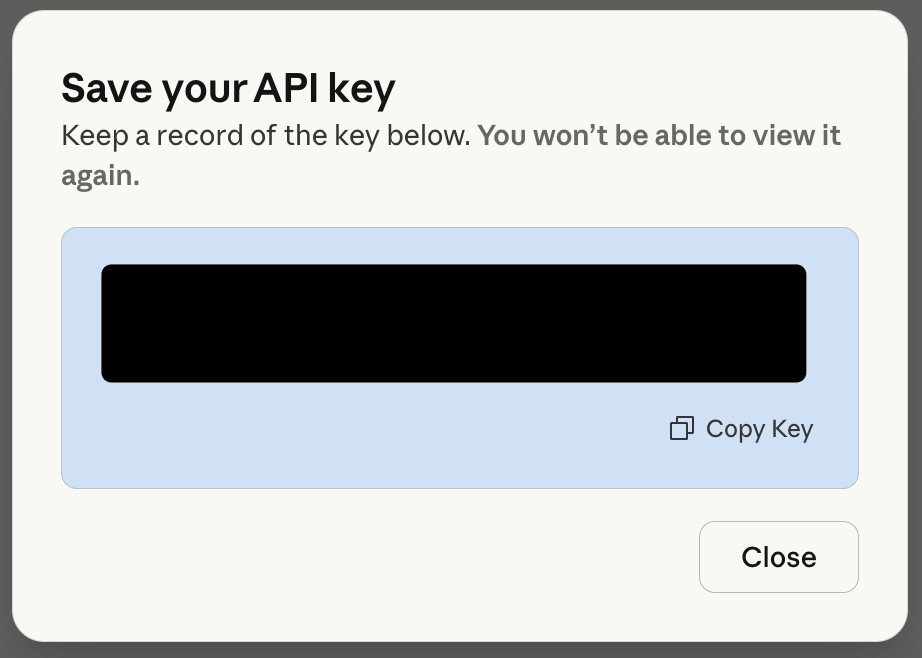
Note that you cannot see the key again after closing that dialog, but you can always create a new key at any time.
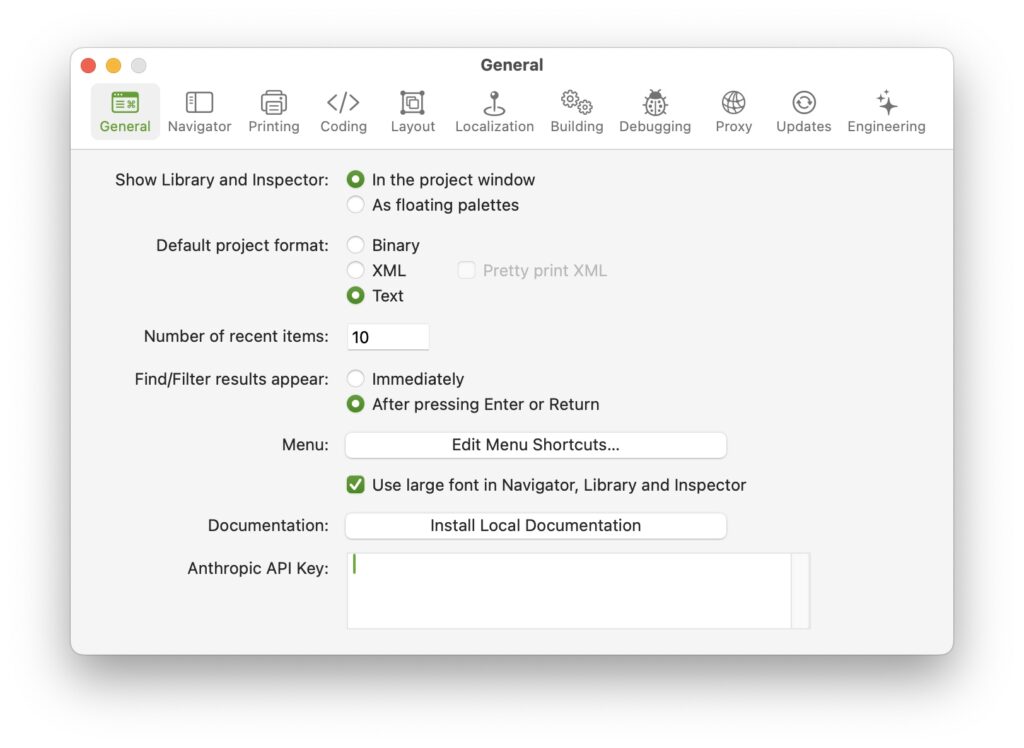
Now go to Xojo Settings and in the General tab, paste it into the “Anthropic API Key” field.
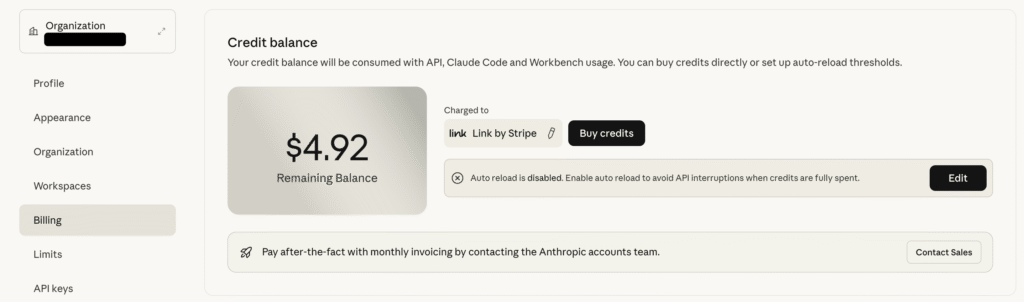
Go back to the Claude Console and click on the Billing tab to buy credits. Interacting with Jade requires credits. The amount of credits used depends on the complexity of your interactions. Until you get used to Jade and credit usage, you’ll probably want to start with a small amount, like $5, and disable auto-reload.
Using Jade

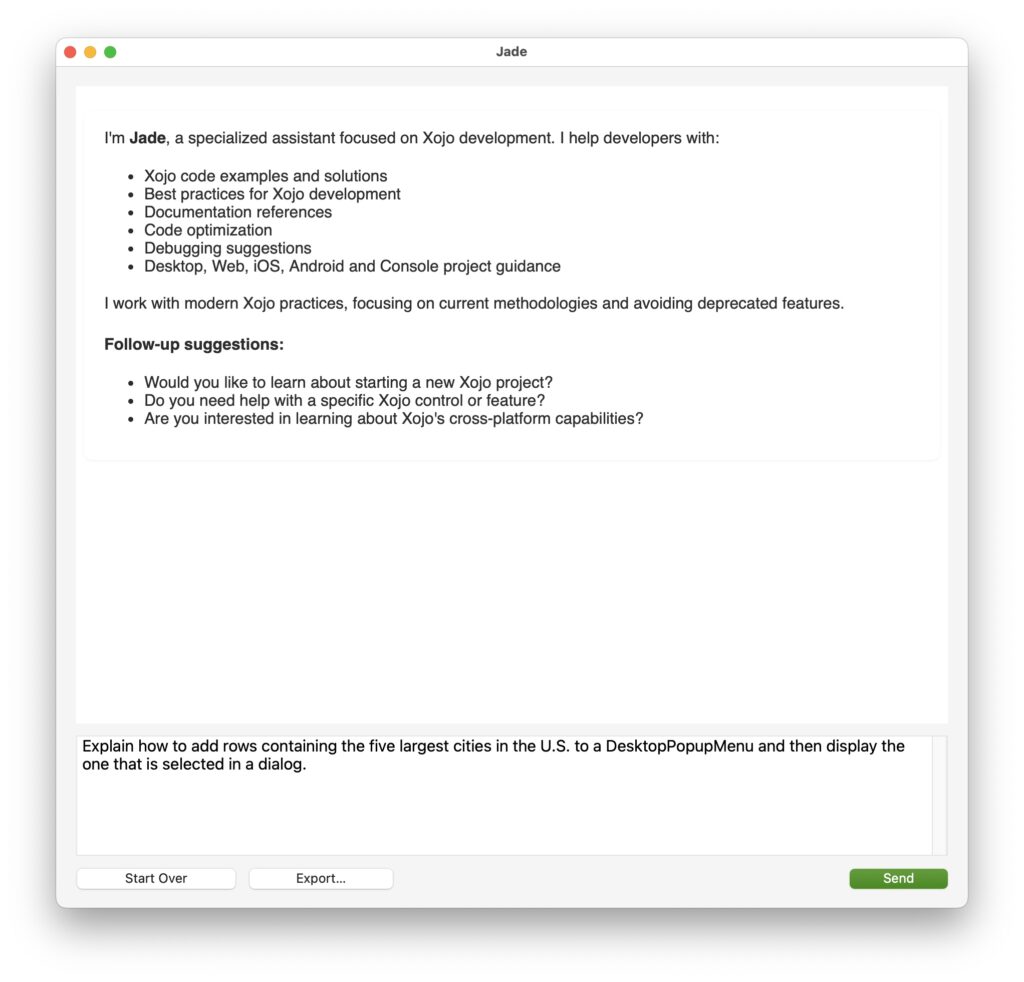
To use Jade, select Help->Ask Jade or click the Ask Jade button in the toolbar. You’ll get some short introductory text. Note: Using Jade requires an internet connection.
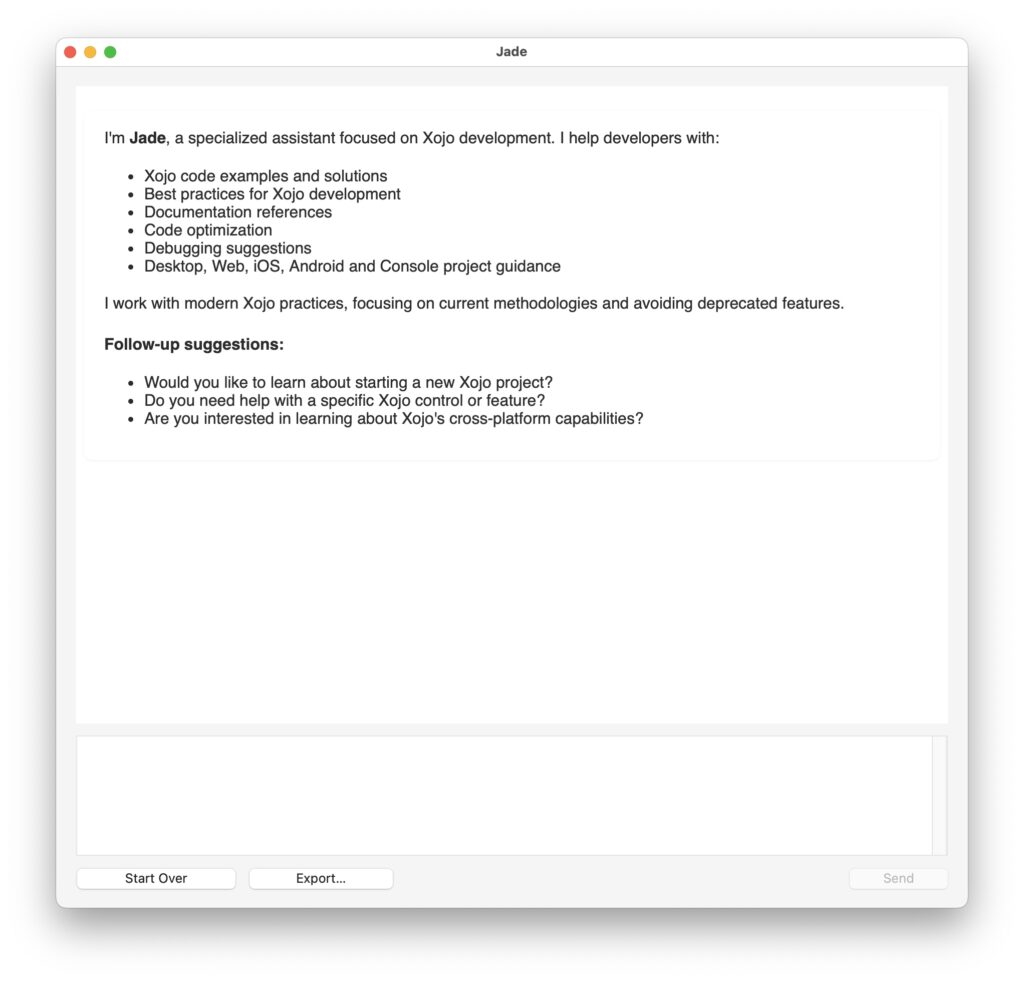
You interact with Jade similarly to a chat app by typing prompts in the conversation area (bottom section) and pressing Send. Jade will think for a moment and then display its response.
If Jade’s response includes Xojo source code you can click one of the buttons above the code block to copy the code to the clipboard or to directly insert it into the active code editor.

When interacting with Jade, keep in mind that although it remembers the context from the current conversation, it has no knowledge of prior conversations. Click the “Start Over” button to clear things and start a new conversation. Starting a new conversation is useful when switching to a different topic as it prevents Jade from relying on information you previously discussed that is no longer relevant.
The Export button saves the current Jade conversation to a JSON file which is a great way to save information you want to retain and refer to later.
Other Tips
- Jade currently uses Claude Sonnet 4, but this may change as newer models become available.
- The only thing Jade knows about your project is what type it is (Desktop, Web, iOS, etc.). If you want Jade to offer suggestions based on your code, you will need to copy/paste the relevant code into the Jade conversation area.
- Your Jade conversation is restored when the IDE restarts. If you get errors, ensure that you have valid internet access, that the API key is valid and you have a positive credit amount.
Wrap
We hope you find Jade helpful with your Xojo development. Remember, Jade in Xojo 2025r3 is the first version of an AI assistant for Xojo and will improve over time. In subsequent releases we expect to add more capabilities and project integration. Read more about Jade in Xojo’s Documentation.
Paul learned to program in BASIC at age 13 and has programmed in more languages than he remembers, with Xojo being an obvious favorite. When not working on Xojo, you can find him talking about retrocomputing at Goto 10 and on Mastodon @lefebvre@hachyderm.io.