
If you followed the previous two articles in this series, you should be set up properly now, right? Your Mac developer certificates are stored in Keychain Access, so you only need to fill in the Developer ID field under Build Settings > macOS > Sign with the appropriate certificate value, click Build (or Publish), and distribute your new amazing app worldwide. Well, not quite. There are still other pieces to consider when signing and distributing your macOS app.
For the past 20 years, Apple has increasingly tightened security measures when it comes to running apps distributed by third parties. Let’s take a look at this summarized timeline of code-signing and security measures added by Apple over years:
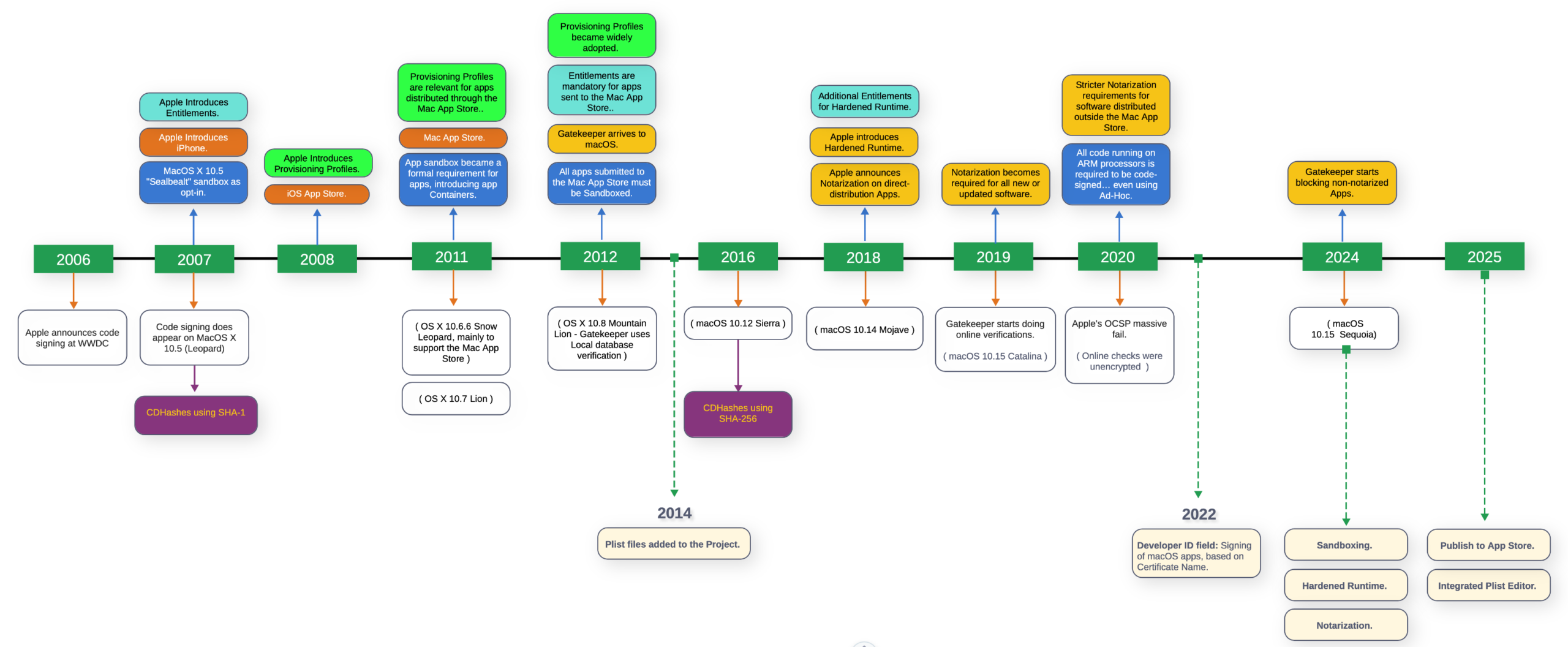
The most notable developments happened in 2011, 2012 and 2018, when terms like Sandbox and, especially, Containers, Gatekeeper, Hardened Runtime and Notarization were introduced and began to impact other pieces of the puzzle to consider when signing macOS apps. In fact, we could say that technologies such as code-signing, Sandboxing, Entitlements or Provisioning Profiles were among the first iOS technologies to make their way to macOS.
So here is an broad overview what these technologies mean:
- Sandboxing– When used, Sandboxing confines applications to a restricted, designated area of the system (its own “container”), preventing them from accessing user data, hardware or other apps without explicit permission. The system requires apps to ask for permission to use hardware resources or access user files. Sandboxing is mandatory for apps distributed through the Mac App Store.
- Gatekeeper- This technology is the primary security layer that checks whether a downloaded app comes from a verified/known developer, especially when the application has been Notarized by Apple.
- Hardened Runtime– Acts as a proactive, system-enforced shield that protects applications while they run, preventing malicious code from exploiting legitimate software. Enabling Hardened Runtime is required for Notarization.
- Notarization– Notarization is an automated security screening process run by Apple that scans software distributed outside the Mac App Store for malicious components and known security issues. Today, notarization is required for software distributed outside the Mac App Store that has been signed with the Developer ID application certificate. As a result of the process, notarization generates and staples a ticket, signed by an Apple certificate, to the app so Gatekeeper can trust it when executed.
So, basically, while Sandboxing is still optional for apps distributed outside the Mac App Store (i.e., signed with your Developer ID certificate), Notarization and Hardened Runtime are the recommended defaults. Enabling Sandboxing for your app is something you should consider based on the needs (features) and the privacy balance you want to offer your users.
If you plan to distribute the app through the Mac App Store as well, it will need to be Sandboxed and signed with your Apple Distribution certificate, while enabling Hardened Runtime is optional.
Entitlements and Provisioning Profiles
Entitlements and Provisioning Profiles are also required for many of these security measures, depending on the features and services your app uses, and they come into play during building and signing.
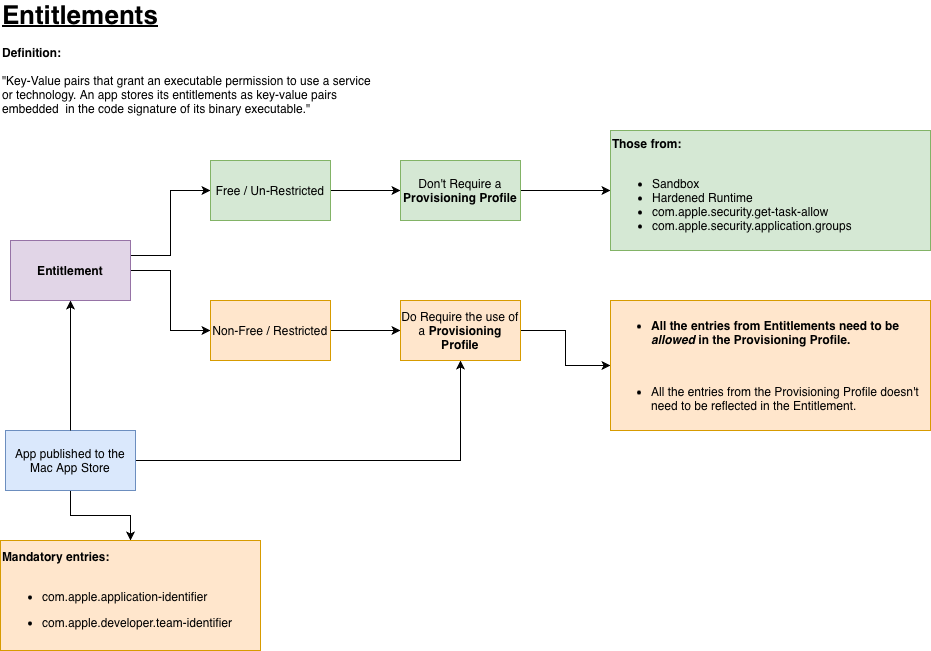
If you decide to go the Sandboxing route, then using Entitlements is mandatory. The good news is that Sandboxing entitlements are free to use (they don’t require creating or adding a Provisioning Profile to the project). However, if your app needs special access to the Keychain or uses iCloud, Apple Pay, or other services, you’ll need to create a Provisioning Profile in the Apple Developer portal.
Wait—what are Entitlements and Provisioning Profiles, and how do they relate to macOS app code signing?
Entitlements
Entitlements are XML-based .plist files (not unlike the app’s Info.plist) containing a set of key-value pairs. They are embedded directly into the app’s binary as part of the code signing process, typically using your Developer ID Application or Apple Distribution certificates.
Provisioning Profiles
While Entitlements are just a file, Provisioning Profiles are a different beast:
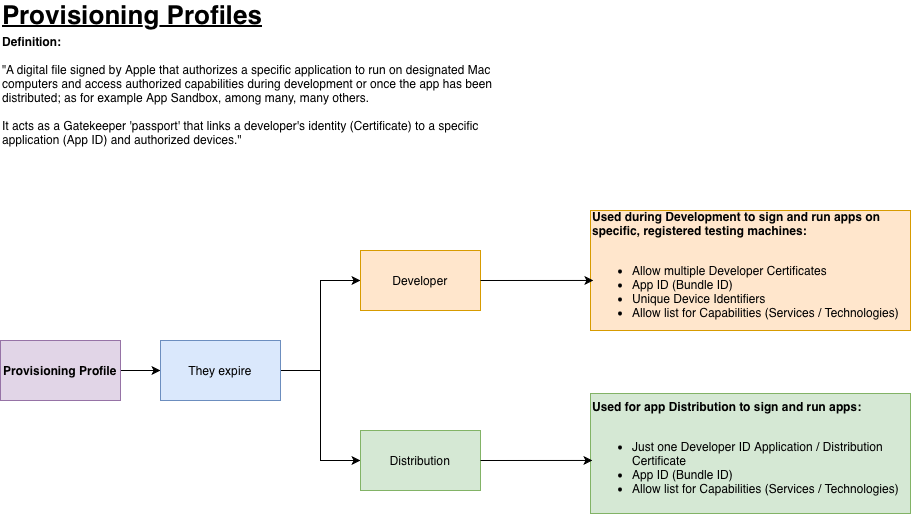
Provisioning Profiles must be created in the Apple Developer Portal. When you create one, you specify the App ID (the combination of your Team ID and the app bundle identifier which are case sensitive so pay attention). Even if you don’t plan to distribute your macOS app via the Mac App Store, you still need a Provisioning Profile, which requires creating an App ID first in the Developer Portal.
There are two kinds of Provisioning Profiles: Development and Distribution. As part of the provisioning profile creation, you must choose which type you will use.
- Development Provisioning Profiles are used while you’re developing your app; the app is signed with an Apple Development certificate and is intended to run on a set of Mac computers you’ve registered. During creation, you can add as many Apple Development certificates as you have under your Team ID.
- Distribution Provisioning Profiles are used when distributing your app. For direct distribution, sign with the same Developer ID certificate you’ll use for signing the app; for Mac App Store distribution, sign with the Apple Distribution certificate.
- Development and Distribution Provisioning Profiles do expire. This is something to keep in mind, especially when deploying new or updated versions of your app, because you may need to create new profiles.
- Development and Distribution Profiles are editable. If you make a mistake, note that both types can be edited in the Apple Developer portal, but only for certain fields: the App ID, the profile name, the selected certificate, and (for Development profiles) the included testing devices.
When Certificates and/or Provisioning Profiles expire…
We’ve already noted in previous articles that Apple Developer certificates expire one year after they’re created. We’ve also learned that if your app relies on a Distribution Provisioning Profile, that profile can expire as well. So, what does this mean for your already deployed apps?
No worries. Let’s focus first on directly distributed macOS apps (those signed with the Developer ID certificate) and pull one screenshot from the previous article:
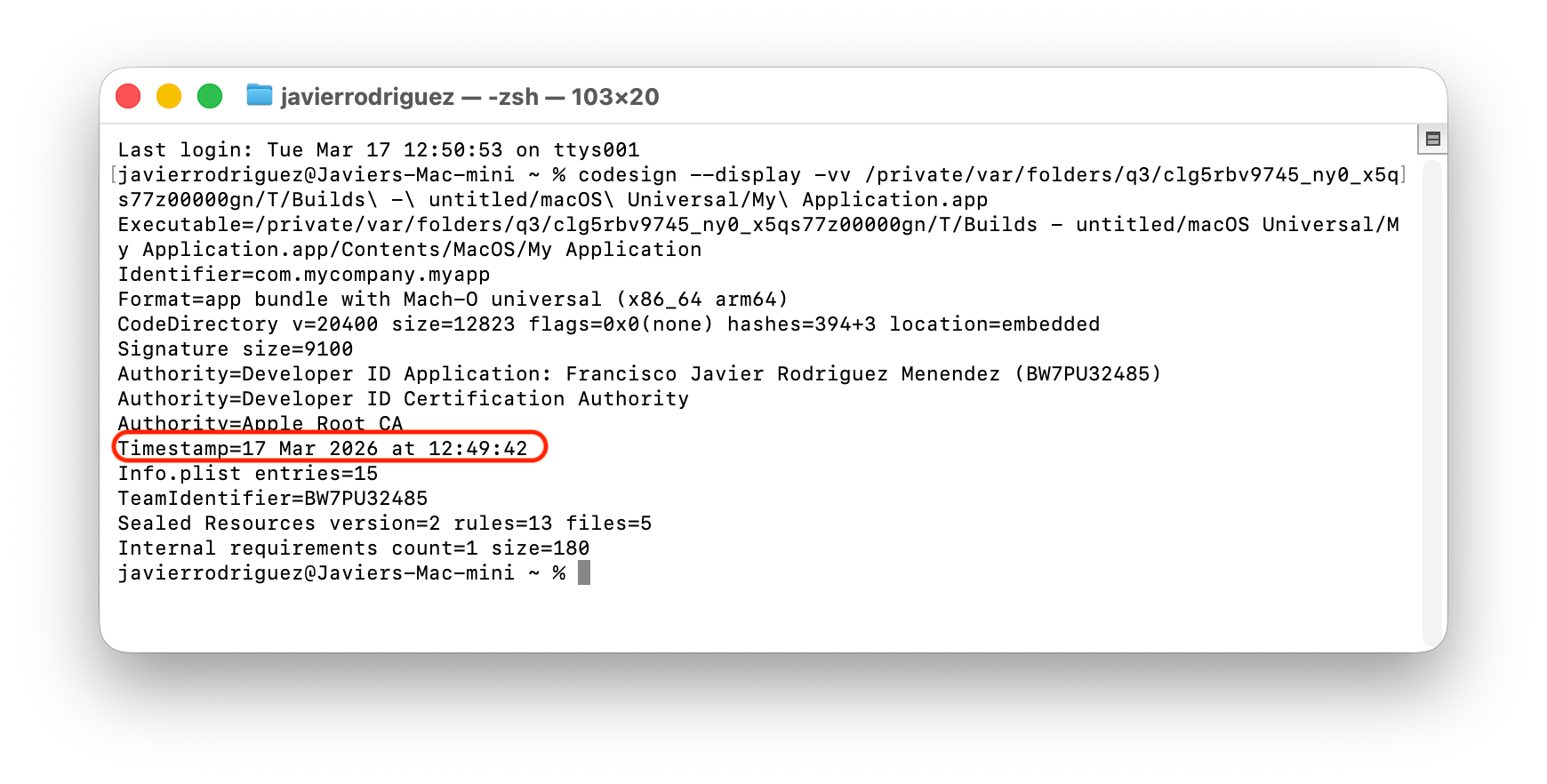
Observe the highlighted Timestamp line. When the app is signed, the date is added automatically (retrieved from Apple’s servers). So, when a user runs an app whose embedded Developer ID Certificate has expired since its release, Gatekeeper will rely on that timestamp, compare it to the embedded certificate’s expiration date, and if everything matches—meaning it was signed before the certificate expired—the app will continue to work, provided the embedded certificate has not been revoked by the developer. In addition, if the app was Notarized, that helps a lot, because the stapled ticket includes its own timestamp and was signed with a longer-lasting Apple Certificate.
If the app is distributed through the Mac App Store, there’s good news. After you submit the app for distribution via App Store Connect and it passes Apple’s review, the app’s signing with your Apple Distribution certificate is replaced by Apple’s own signing. This means that users who install the app from the Mac App Store can continue to run it even if your original Apple Distribution certificate expired long ago.
Distribution Provisioning Profiles behave differently from others: once they expire, the app containing such a Distribution Profile will fail to execute.
The good news is that a Distribution Profile lasts for a very long time (around 18 years) so you’ll likely have ample time to create new distribution provisioning profiles and deploy updates that use renewed profiles well before users are affected.
Of course, as soon as any of your Apple Developer certificates expire, you already know how to request and install new ones in your Mac keychain.
Nearly Concluded
In the next, and last article, we will see how Xojo helps with everything related to signing and distributing your macOS apps. I’ll also show you how to deal with some of the most common issues related with certificates.
Javier Menendez is an engineer at Xojo and has been using Xojo since 1998. He lives in Castellón, Spain and hosts regular Xojo hangouts en español. Ask Javier questions on Twitter at @XojoES or on the Xojo Forum.
Code Signing on macOS: What Developers Need to Know