
The ability to create a compiled Library with Xojo has been a long-requested feature. Starting with 2025 Release 3, Library support is now available as a preview. Here’s more information about what it is and how you can use it.
What is a Library?
A Library is a collection of pre-written, reusable code containing methods, classes and UI. Up until now, the way to distribute a Library for use with Xojo was to create a Plugin or to manually re-use project items across projects. Both have pros and cons.
Plugins are compiled and do not expose source code, but plugins cannot be created using Xojo itself and are typically created using C/C++ along with the Xojo Plugin SDK. Sharing project items is fine for internal projects or open-source projects, but less ideal for commercial libraries. They can be harder to manually add to a project and are recompiled along with the project, slowing the debug process.
With a Xojo Library, you can now create your own compiled Library using Xojo itself. This Library can contain nearly any Xojo project item and can be easily used in other Xojo projects because it is distributed as a single file.
At a high-level, you create your Library in Xojo, add your project items to it and built it into a Library package file. Other projects can then use this Library package, which gives them access to the items you included in the Library.
Creating a Library
Here is a brief overview of how you create a Xojo Library:
- In a Desktop, Web, Console or iOS project add a Library by choosing Insert->Library.
- Add the project items you want to the Library. Any Xojo project item is supported, except for Worker.
- Build the project. It will build the main app (which should serve as a test app for your Library) and a separate Library package file (with extension .xojo_library).
- You can put this Library package alongside another project (on the drive) and it will be loaded when that project is opened by Xojo. You can then use the classes, methods and UI contained in the Library within your project. If you instead put the Library in the Plugins folder, then it will be available for all projects.
This is all best demonstrated by a quick example. Go ahead and create a Desktop project and add a Library to it, which adds a Library1 project item to the Navigator. Change its name using the Inspector to LibHello.
While LibHello is selected, choose Insert->Class. This adds Class1 to it. This new class is now part of the Library. With Class1 selected, change its name to StringStuff.
You can now add whatever methods or properties you want to the class. For our example purposes here we will add a simple method that reverses a string.
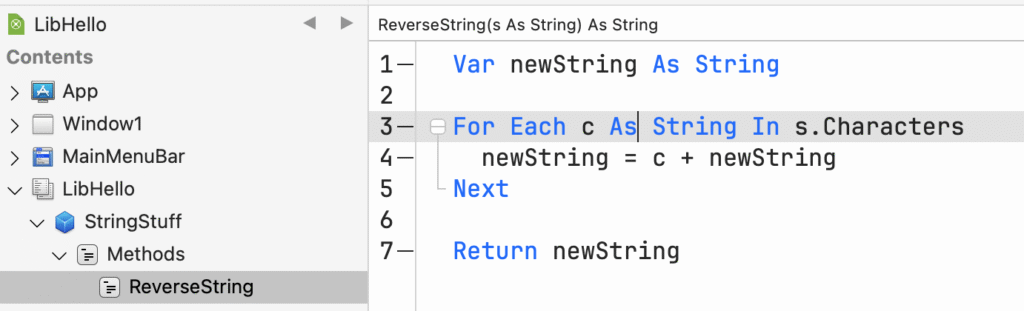
Public Function ReverseString(s As String) As String
  Var newString As String

  For Each c As String In s.Characters
    newString = c + newString
  Next

  Return newString
End Function
The Library could contain many other things of course, but to keep things simple this Library will have just the single class with its single method. Here’s what it looks like in the project:
The first thing to do is to test this Library ReverseString method. Add a button to Window1 and have it call the function, verifying the result.
Var stuff As New StringStuff
Var result As String = stuff.ReverseString("Xojo")

MessageBox(result)
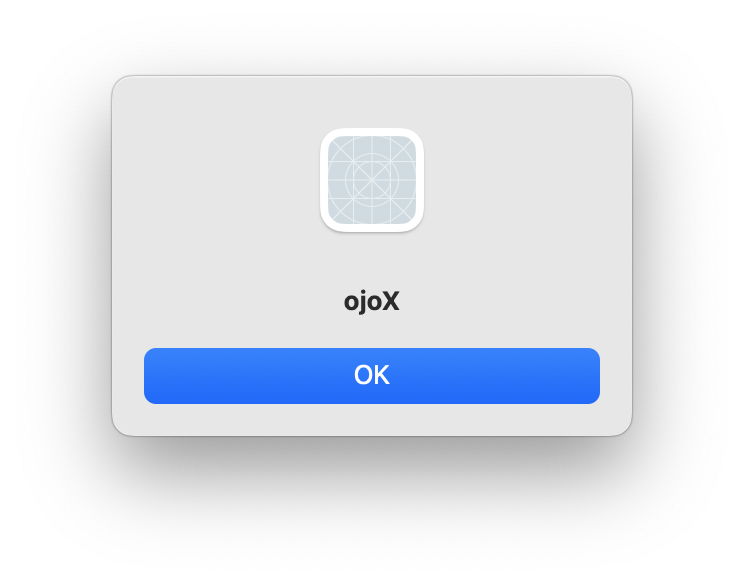
When you run, you can see the output:
So far this is all not much different than you would normally be doing with a Xojo project. The next step is to create the Library package for use by other projects.
In the Build Settings area, select Shared. This is where you can enter some information about the Library that can be seen by those that use it.
- In the Version field, enter “1.0”.
- In the Copyright field, enter “Acme, Inc.”
- In the Description field, enter “A Xojo Library test.”
Also in the Build Settings area, check the boxes for the platforms you want the Library to work on. In most situations, you will want to select macOS, Windows and Linux.
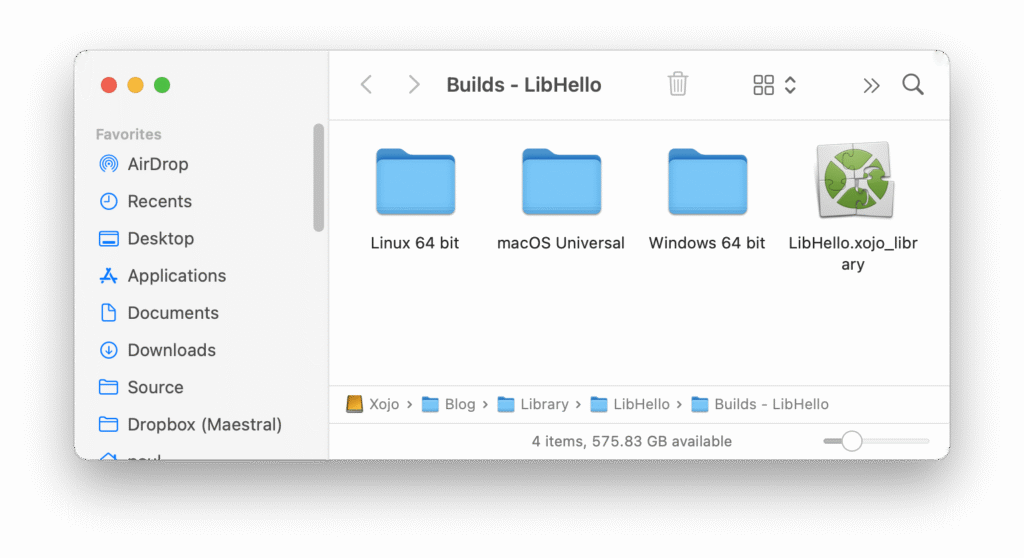
Now click Build. This builds the app as usual, but also creates a separate Library package file (LibHello.xojo_library for this example) that can be used with other projects.
Using a Library
Now that you’ve created your Library package, you can use it with other Xojo projects. The Library built above was created within a Desktop project, so it can only be used with other Desktop projects. So the first thing to do is to create a new Desktop project (call it MyTest), save it and close it.
Once it is saved, go to Finder or Explorer and place a copy of the LibHello.xojo_library file (from its build location) alongside this saved project file.
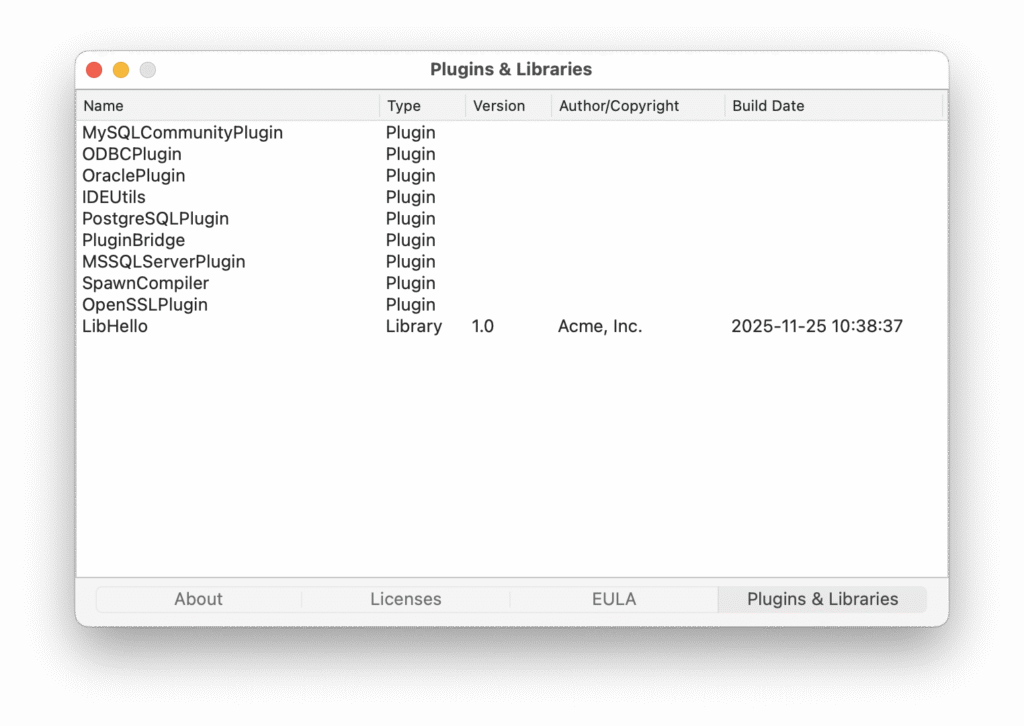
Go back to Xojo and open the MyTest project. The project will open normally, but the Library will also be loaded up as well. You can see this by showing the Xojo About window and going to the Plugins & Libraries tab. There you will see the Library name along with the information you entered about it earlier. (Double-click on the Library row to show the description.)
Going back to the MyTest project, you can now use the Library with it. Add a button to the window and have it call the StringReverse function the same way you did before:
Var stuff As New StringStuff
Var result As String = stuff.ReverseString("Xojo")

MessageBox(result)
Now run the project and it will use the class and its method just as if it is part of the project.
That’s the basics of how to create and use a Library. You can of course include whatever you want in the Library, but as with any library it is usually a good idea to keep things well-organized.
Considerations
- A Library package (which uses ZIP) contains compiled code and definitions of the public API in that code.
- Only a single Library project item can be added to a project when developing.
- A project can use any number of Library packages.
- For a built library to work on all OS platforms, then those platforms must be selected before building it.
- Libraries only support 64-bit builds.
- Library packages are placed alongside the project file and are loaded when the project is loaded.
- Library packages can also be placed in the Plugins folder. These libraries will be loaded separately for each project.
- If items in your Library have dependencies outside the Library, then the Library package will not be usable in another project without those dependencies. For example, if a Library class method references a class in the main project, then it will build without an error (because the main project is available), but if you use that Library in another project you will get linker errors.
Why a Preview?
We are referring to this initial version of Xojo Libraries as a preview release because it is very new and we want to give more developers a chance to test with it so we can iron out issues. We encourage you to try moving your existing reusable code collections over to a Library to help test, while also improving your workflow. If you have any open-source projects that are essentially a Library, you might try building them into a Xojo Library package as well.
You can make Library packages available publicly, but you should probably tag them as a preview, beta or test version until we remove the preview label.
Read more about Libraries in the Xojo Documentation. Check out these open-source projects on GitHub that have recently been updated for API 2.0 and now have a Library that you can download from the Releases section:
Paul learned to program in BASIC at age 13 and has programmed in more languages than he remembers, with Xojo being an obvious favorite. When not working on Xojo, you can find him talking about retrocomputing at Goto 10 and on Mastodon @lefebvre@hachyderm.io.