
In Xojo 2026r1 we revised the macOS Developer ID field and replaced it with a Team-based popup menu that aligns with the style found in iOS projects. This change aims to offer a cleaner, more intuitive way to manage developer certificates for the distribution of your built macOS app.
The Developer ID field was introduced in Xojo 2022r1, allowing you to fill in the developer certificate information needed for signing built macOS apps; however, it could be confusing to know exactly what information was expected.
- Developer ID Application
- Developer ID Application: Francisco Javier Rodriguez Menendez
- Developer ID Application: Francisco Javier Rodriguez Menendez (BW7PU32485)
- 7D767DB917A45A8976BEB5B92F04E8C18D09501A
And… which certificate should be used for Development builds, Direct Distribution, or Mac App Store publishing? That may not be obvious for someone new to all this.
Additionally, what happens if the entered data comes from an expired certificate or if the certificate isn’t in the Keychain?
The new approach: How it works
The Team-based signing chooser for the Mac Developer ID field follows these steps:
- Collects all the developer certificates found under the user Keychain.
- Groups the valid certificates by Team (what Apple designates as the TeamID).
- Based on the previous information, the new popup menu “Build For” will offer only the code-signing options available for the current selected Team:
- Development. This is the equivalent to using the Apple Development certificate.
- Direct Distribution. This is the equivalent to using the Developer ID Application certificate.
- App Store. This is the equivalent to using the Apple Distribution certificate. In addition, the Publish feature will be enabled if, for the selected Team, there is also a valid 3rd‑party Mac Developer Installer certificate available.
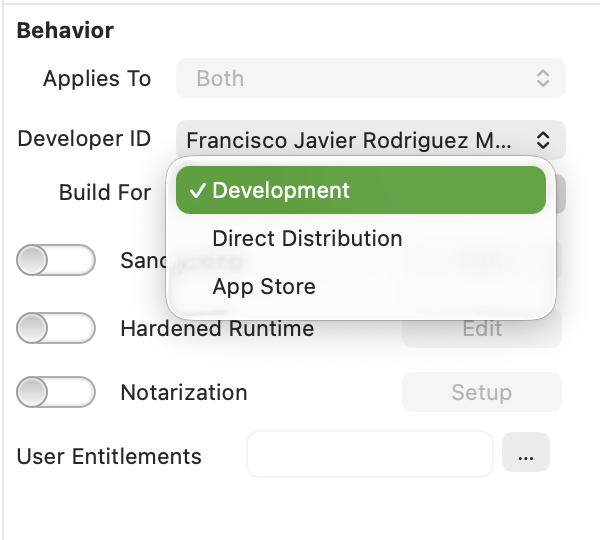
If None is selected in the Developer ID popup menu, the macOS app will be built/debugged using Ad-Hoc signing.
Both menus update on the fly, so if new certificates are added (or removed) from the keychain, or if any have expired since last opened, both the Developer ID and Build For popup menus will reflect those changes.
macOS Certificates Inspector Window
Under the Teams popup menu, there is also an Inspect… option. When selected, it opens a new window where you can view and gather additional information for:
- Installed / Missing Apple Intermediate Certificates.
- Installed / Missing / Expired Developer Certificates, grouped by Team.
At a glance, you’ll see useful details for each certificate, such as:
- The expiration date
- The keychain where it is stored.
- Serial number, useful for identifying same-kind developer / intermediate certificates under different Macs.
- Issuer specific information.
Clicking any certificate provides more detailed information about the role it plays in the macOS signing process.
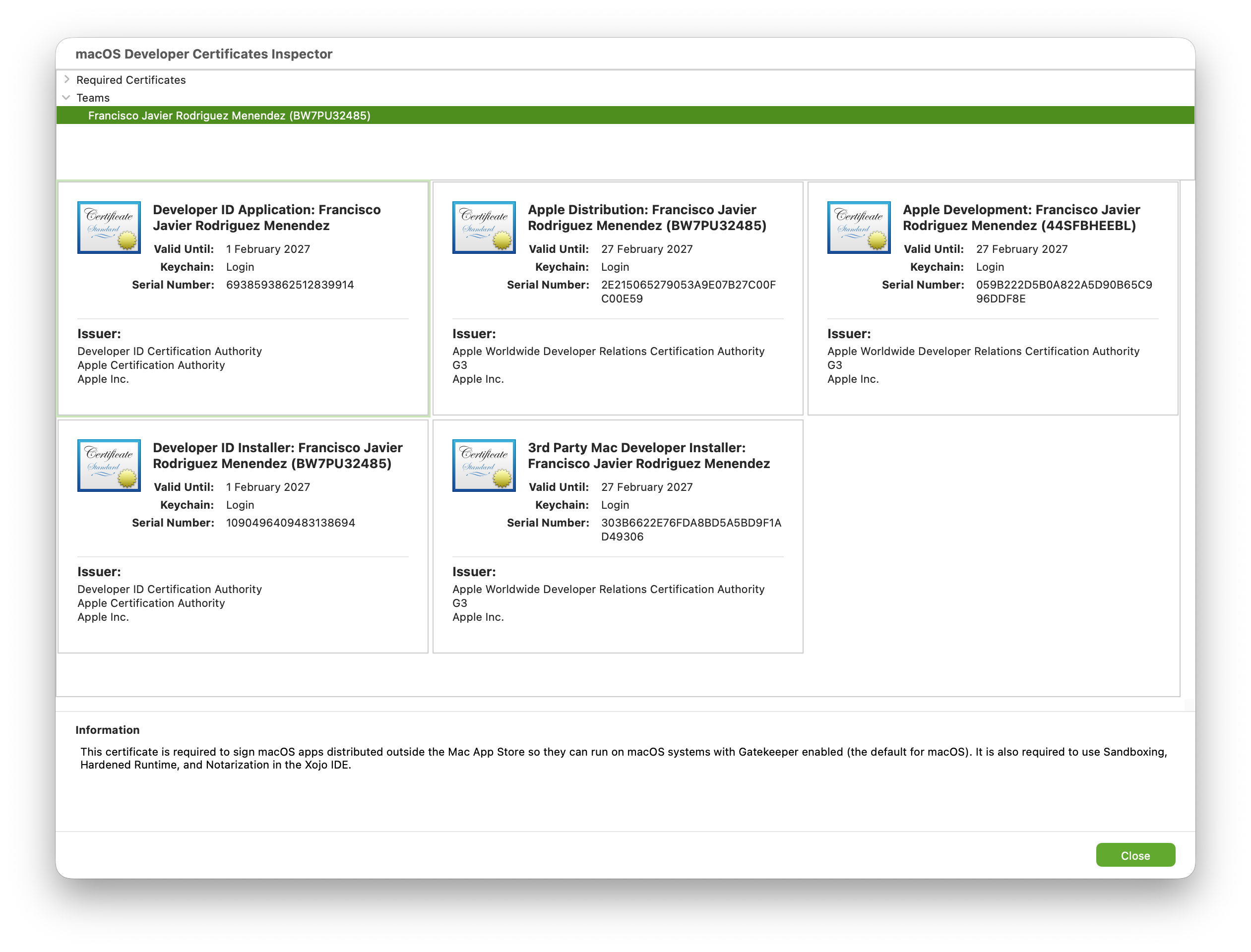
This Inspector is also useful in order to identify some of the most common issues related with the handling of certificates such as:
- Missing certificates for a given Team, determining thus the options that are available under the “Build For” popup menu.
- Expired certificates. These also determine the options that are available under the “Build For” popup menu for a given Team. In addition, if you want to do some cleanup, it is possible to delete these expired certificates directly from the Inspector without needing to open the Keychain Access app.
- About to expire certificates, so you are aware of it and the impact it could have on apps close to be distributed or on already created Provisioning Profiles, for example.
- Certificates with their private key missing. These can’t be used for signing purposes, so you will be able to re-install them in the keychain (if you have a backup) or install a new certificate.
- Developer Certificates where some of the required intermediate certificate is missing. You will be able to install the missing Intermediate (active Internet connection required).
Improvements to macOS Builds and Debugged apps
Although Sandboxing, Entitlements, and Provisioning Profiles have been part of macOS app development, this release brings several enhancements in these areas:
- Now it is possible debug Sandboxed apps directly from the IDE.
- Entitlements and Provisioning Profile are applied when the app is debugged from the IDE.
- Improvements in how the required Entitlements are added and signed when the macOS app is built; and also a better handling of the user-added entitlements and provisioning profile files (if required).
- Debugged and Built apps can be attached to the Instruments app. Among other things, Instruments can be used to detect issues such as memory leaks in the executed app. The IDE now automatically adds the required entitlement for this when: the app is debugged/built using the “None” (Ad-Hoc signing) from the Team popup menu, or, 2) when the app is built for Development (Build For) for a given Team.
When Build For is set to Direct Distribution or App Store, the required entitlement for Instruments to attach to the app, will be added only when the app is debugged from the IDE. If you want to use Instruments with a built app signed using these certificates, then you need to add that entitlement explicitly.
This decision is because when get-tasks-allow is set to True (the entitlement required in order Instrument being able to function), there are some well documented vulnerabilities that could be used to escalate privileges or inject code into your app. That’s not desirable for your distributed apps for sure (whether using Direct Distribution or if your app is installed through the Mac App Store).
Looking forward
We know there are still some areas to improve regarding code signing on macOS (and iOS) and we are working on some of them already. In the meantime, you’ll likely find the new Team-based Developer ID option more approachable, especially if this is your first experience dealing with certificates, signing, and distributing your freshly built macOS app.
A big THANK YOU to Richard Grafl for all his help and feedback during the beta-testing cycle of this feature.
Happy macOS code-signing!
Javier Menendez is an engineer at Xojo and has been using Xojo since 1998. He lives in Castellón, Spain and hosts regular Xojo hangouts en español. Ask Javier questions on Twitter at @XojoES or on the Xojo Forum.
Learn more about Code Signing in our recent series:
Code Signing on macOS: What Developers Need to Know